
The gap between a default MT4 installation and a properly optimized Forex VPS deployment is enormous. Default settings consume up to 1 GB of RAM on data most EAs never reference. The standard data folder path breaks silently after every reboot. Trailing stops freeze the moment your terminal loses its desktop session. These are not edge cases. They are the predictable outcome of running a desktop application on server hardware without adjusting for the environment.
MT4 was designed in 2005 for a trader sitting at a Windows XP desktop, watching charts and clicking buttons. A VPS running EAs unattended 24/5 is a fundamentally different deployment context, and six specific configuration changes address the root causes of most failures: installing outside Program Files, enabling portable mode from the first launch, configuring auto-login with a delayed startup script, reducing max bars to 5,000 to 10,000, cleaning the Market Watch to only traded symbols, and scheduling weekly restarts during the weekend market close.
This guide covers each of those changes with verified technical detail, along with Windows Server tuning, memory management around MT4’s 32-bit ceiling, log file maintenance, and multi-instance capacity planning. Resource figures draw from MetaQuotes documentation, MQL5 and ForexFactory forum measurements, and VPS provider operational guides. Where a figure comes from a single source or a commercially interested party, that context is noted.
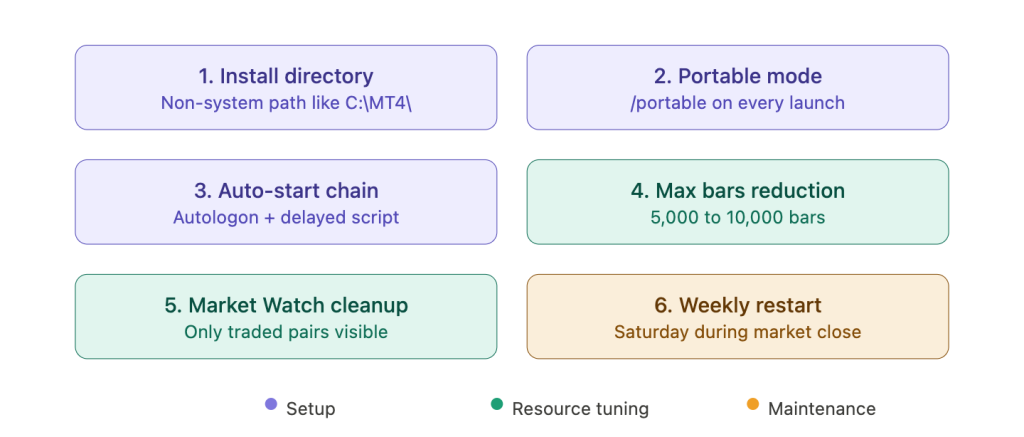
Installation decisions that matter on a server
MetaQuotes stopped selling new MT4 broker licenses in 2018, and the official metatrader4.com download now redirects to the MT5 installer. The correct approach is to download the broker-branded MT4 installer from your broker’s website. Each broker provides a custom executable pre-configured with their trading server addresses. A direct MetaQuotes installer link still exists and has been confirmed active by MQL5 forum moderators, but the broker-specific version is preferred because it ships with the correct server list.
Windows Server 2019 and 2022 are fully compatible with current MT4 builds (1420+). MT4 is a 32-bit application but runs without issues on 64-bit Server editions, which is what every VPS provider ships. Earlier Server versions have documented limitations: builds after 735 (October 2014) dropped Server 2003 support, and builds 1170+ require Windows 7 or Server 2008 R2 as a minimum.
The installation directory is the first decision that actually matters. Do not install to Program Files. Starting with Windows Vista, UAC restrictions prevent programs from writing data inside Program Files. If MT4 is installed there, Windows silently redirects file writes to a VirtualStore path under the user’s AppData directory. File Explorer shows files as if they exist in the installation folder, but physically they are stored elsewhere. On Windows Server 2019 and 2022, UAC cannot be fully disabled even with the “Never notify” setting. This breaks portable mode entirely, and debugging the resulting data folder mismatch wastes hours because everything looks correct in the file browser while MT4 loads empty configurations.
Install to a clean, non-system path: C:\MT4_ICMarkets\ or C:\Trading\MT4_Broker1\. Name the folder after the broker to keep multiple installations distinguishable. A fresh installation occupies approximately 50 to 100 MB on disk. The installer itself is only 4 to 5 MB. Runtime data grows substantially over time: history data can reach 100 to 200 MB per currency pair for 1-minute bars, and operational data with backtesting can exceed several GB.
On first launch, MT4 creates its data folder structure, opens the account dialog, downloads broker symbol specifications, loads initial price history, and checks MetaQuotes servers for updates. The auto-update check runs on every launch and cannot be disabled through the MT4 interface. To prevent updates from disrupting a live trading setup, add the /skipupdate flag to the shortcut target. This combines with the portable flag covered in the next section: “C:\MT4_Broker1\terminal.exe” /portable /skipupdate. One caveat: blocking updates indefinitely may eventually prevent connection to broker servers if the broker enforces a minimum build version. Check for pending updates during weekend maintenance windows when EAs are not trading.
MT4 does not have documented hard dependencies on .NET Framework or Visual C++ redistributables for the core terminal. Windows Server 2019 and 2022 ship with .NET Framework 4.7+ pre-installed. Specific EAs or custom DLLs may require additional runtimes, but the platform itself runs out of the box.
Portable mode is not optional on a VPS
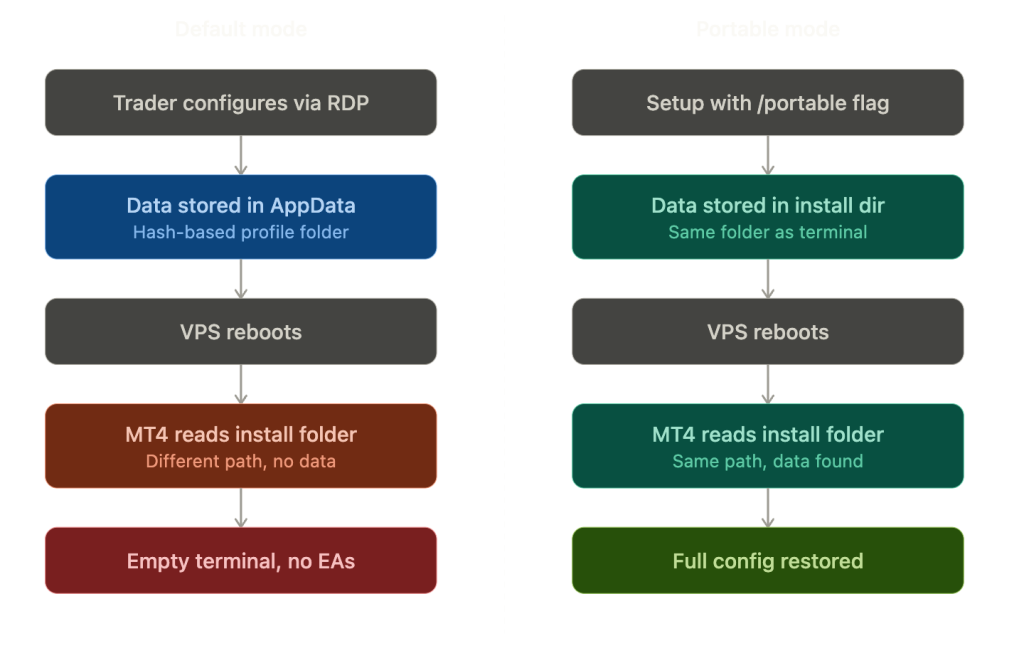
Without portable mode, MT4 stores all user data in C:\Users\<username>\AppData\Roaming\MetaQuotes\Terminal\<hash>\, where the hash is a 32-character hexadecimal string derived from the installation path. Each installation gets a unique hash folder. An origin.txt file inside maps back to the installation directory, but the data itself lives deep in the user profile. This design works on a desktop where the same user always logs in through the same Windows session. On a VPS, it creates a silent failure that has caught nearly every trader who has deployed MT4 on a server for the first time.
The failure sequence is specific and well-documented. A trader sets up MT4 via RDP: logs into the broker account, attaches EAs, configures chart profiles, and verifies everything works. All of this data writes to the AppData hash folder because the RDP session triggers UAC-aware data separation. Then the VPS reboots. Autologon starts the Windows session, and MT4 launches. But the session context differs from the original RDP setup. Without UAC or an active RDP connection, MT4 looks for data in the installation folder instead of AppData. It finds nothing. The terminal opens with no credentials, no EAs, empty charts. The trader’s entire configuration is invisible to the newly launched instance. Hyonix’s knowledge base documents this exact problem, and the official MT4 Help confirms the trigger conditions: UAC enabled, limited write permissions, or connection via remote desktop.
Portable mode eliminates this entirely. With the /portable flag, MT4 stores everything inside the installation directory. Config files go to \config\, history to \history\<server>\, logs to \logs\, all MQL4 content to \MQL4\, templates to \templates\, and profiles to \profiles\. The data folder path never changes regardless of how the Windows session was created, whether through RDP, Autologon, or Task Scheduler.
Add /portable to the shortcut target: “C:\MT4_Broker1\terminal.exe” /portable. There must be a space between the closing quotation mark and the forward slash. A common error is writing the flag with a backslash or without the space, both of which fail silently. MT4 launches normally but operates in default mode. Verify portable mode is active by clicking File, then Open Data Folder. If it opens the installation directory, portable mode is working. If it opens an AppData path containing a hex string, it is not.
For traders migrating an existing non-portable installation, close MT4 and navigate to the current data folder (found via File, then Open Data Folder before the switch). Copy the contents of \MQL4\, \config\, \history\, \profiles\, and \templates\ into the MT4 installation directory. Then launch with the /portable flag. The official MT4 Help explicitly warns that launching in portable mode does not copy data from the AppData folder automatically. This is a manual step, and skipping it means starting with a clean configuration. StrategyQuant and multiple VPS provider guides recommend enabling portable mode immediately on fresh installations to avoid this migration entirely.
The backup advantage alone justifies portable mode even without the data path problem. One folder equals the complete terminal state. Copy or compress the entire installation directory to back up everything: EAs, indicators, profiles, history, and configuration. Restore by copying back and launching with /portable. Migrating between VPS instances becomes a file copy operation rather than a reconfiguration project. One ForexFactory user reports maintaining 75 separate portable MT4 installations using this approach.
MetaQuotes officially recommends against portable mode for general use, but that guidance targets desktop users on consumer Windows where the AppData separation serves a purpose. Every major VPS provider, including MyForexVPS, HostStage, StrategyQuant, and ForexVPS.net, explicitly recommends portable mode for server deployments. The consensus is unanimous across the community.
Auto-start after reboot: the three-component solution
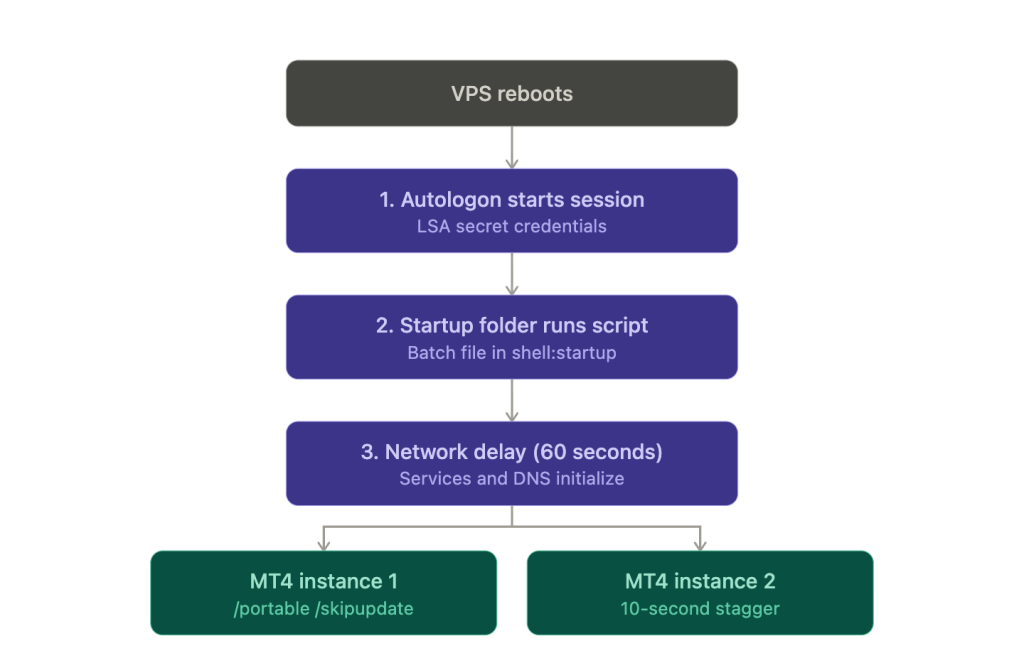
MT4 requires an interactive Windows desktop session to function. Without a logged-in user, the VPS sits at the login screen after every reboot, and nothing launches. The solution has three components that work together: automatic login, a startup shortcut, and an initialization delay. Removing any one of the three creates a failure mode.
Sysinternals Autologon handles the first component. Download it from Microsoft’s official Sysinternals page (495 KB). Run Autologon.exe, enter the username (typically Administrator), the server name as domain, and the password, then click Enable. Credentials are stored as an LSA (Local Security Authority) secret, encrypted in the registry. Microsoft warns that local administrators can retrieve and decrypt it, but this is the accepted method across the entire Forex VPS ecosystem. The alternative, unchecking “Users must enter a user name and password” via netplwiz, works but has UI issues on newer Windows Server versions where the checkbox is hidden. Editing the Winlogon registry key directly stores the password in plaintext and should be avoided.
Task Scheduler with an “At startup” trigger seems like a cleaner approach, but it fails in practice. Tasks running under the SYSTEM account or configured with “Run whether user is logged on or not” execute in Session 0, which has been non-interactive since Windows Vista. Session 0 cannot display UI, access graphics hardware, or reach the user profile’s AppData folder. MT4 launched in Session 0 behaves as a fresh installation with no credentials, no EAs, and empty charts. Setting the task to “Run only when user is logged on” works but requires Autologon anyway, making the Startup folder simpler with fewer points of failure.
The second component is a shortcut to terminal.exe with the /portable and /skipupdate flags, placed in the Windows Startup folder. Open the folder by pressing Win+R and typing shell:startup. Items in this folder execute after the user session loads, which is why Autologon must be configured first.
The third component is a delay. Network services, DNS resolution, and user profile loading may not complete immediately after login. If MT4 launches before the network is ready, it fails to connect to the broker and may not auto-reconnect in all builds. A batch file in the Startup folder handles both the delay and multiple instances:
@echo off
timeout /t 60 /nobreak
start “” “C:\MT4_Broker1\terminal.exe” /portable /skipupdate
timeout /t 10 /nobreak
start “” “C:\MT4_Broker2\terminal.exe” /portable /skipupdate
The 60-second initial delay lets Windows services stabilize. The 10-second stagger between instances prevents overwhelming the VPS CPU and disk during startup. HostStage recommends 10 to 20 second gaps between terminal launches.
Several things persist correctly across restarts without intervention. The AutoTrading button state is saved: if it was enabled (green) when MT4 last closed, it remains enabled on restart. EA attachments persist through profile data. Open positions live on the broker’s server, and server-side stop losses, take profits, and pending orders continue functioning during MT4 downtime. Trailing stops, however, are client-side and stop updating the moment MT4 goes offline. The last stop loss level set by the trailing stop remains active on the broker’s server, but it will not trail further until the terminal reconnects. Always set hard SL/TP on every position as a baseline protection layer.
One setting to verify before going live: the “Disable automated trading when profile has been changed” checkbox in Tools, then Options, then Expert Advisors. If checked, and the profile changes during restart (which can happen if the session context differs even slightly), all EAs are silently disabled. For unattended VPS operation, uncheck both “Disable when account changed” and “Disable when profile changed.”
Resource tuning that cuts RAM and CPU dramatically
The default MT4 configuration is designed for a desktop trader who wants deep chart history, full symbol coverage, and visual richness. On a VPS running EAs, most of that is waste. Three changes, taking less than five minutes combined, reclaim the majority of wasted resources.
The max bars setting has more impact on RAM than any other single variable. MT4 has two related controls in Tools, then Options, then Charts: “Max bars in history” governs how many bars are stored in .hst files on disk, and “Max bars in chart” limits how many bars indicators and EAs can access in memory. The defaults are 512,000 and 65,000 respectively. For VPS-based EA trading, these are wildly excessive. A ForexFactory user measured the impact directly: reducing max bars in chart from 500,000 to 5,000 across 23 pairs dropped memory consumption from approximately 1 GB to roughly 25 MB. That is a 40x reduction from a single setting change. Most EAs need at most a few hundred bars of lookback for their calculations. Pattern scanners and moving average strategies rarely reference more than 200 to 500 bars. Set max bars in chart to 5,000 to 10,000 for live VPS operation, or as low as 500 to 1,000 if your EA’s lookback requirements are minimal. Set max bars in history to 10,000 to 20,000. If an EA requires deeper history for a specific calculation, test with the minimum depth that produces identical results to the full dataset.
The per-indicator overhead compounds the max bars problem. Each indicator buffer stores one double-precision float (8 bytes) per bar. At 200,000 bars, a single buffer consumes approximately 1 MB. An indicator with five buffers uses 5 MB. Attach three such indicators to ten charts and the indicator memory alone reaches 150 MB before accounting for chart data, terminal overhead, or the operating system. Reducing max bars to 5,000 shrinks each buffer to approximately 39 KB, making indicator overhead nearly invisible.
Market Watch cleanup is the second highest-impact optimization. A typical broker offers 50 to 200+ symbols in the Market Watch panel. If all are visible, MT4 processes tick updates for every one of them, potentially thousands of ticks per second during active sessions. FXVPS.biz reports that reducing to 5 to 10 traded pairs can cut CPU usage by 20 to 40%. This specific figure comes from a single commercially interested source, but the underlying mechanism is well-documented: MT4 processes ticks for every visible symbol regardless of whether any chart or EA references it. The official MT4 documentation recommends hiding unused securities “to minimize the traffic.” Right-click Market Watch, select Hide All (this will not remove symbols with open positions or active charts), then manually add back only the pairs your EAs trade.
The remaining optimizations are smaller individually but compound meaningfully across multiple terminal instances. Disable sounds in Tools, then Options, then Events by unchecking Enable. Even without a sound card, the audio processing subsystem adds overhead. Disable news in Tools, then Options, then Server by unchecking Enable news. This eliminates continuous news feed downloads that consume bandwidth and processing time on a headless server. Disable the DDE server in the same location unless you are exporting quotes to an external application. For EA-only charts where no human monitors the screen, reduce visual rendering: uncheck Show trade levels, Show OHLC, Show Ask line, Show period separators, and disable the grid via right-click on the chart. Higher timeframes generate less rendering overhead. An M1 chart recalculates every 60 seconds versus H1 every hour, so if your EA operates on H1 or H4, there is no reason to display M1 charts.
Monitor the results with Task Manager (Ctrl+Shift+Esc). Watch terminal.exe under the Details tab for Private Working Set (RAM) and CPU percentage. The target is sustained CPU below 80% and total RAM usage below 70% of available memory. For longer-term tracking, Windows Performance Monitor (perfmon.exe) can create Data Collector Sets that log Process Private Bytes and Virtual Bytes for the terminal process over days, revealing memory growth patterns that Task Manager snapshots miss.
Windows Server configuration for trading workloads
MT4 optimization does not stop at the terminal’s own settings. The Windows Server environment introduces overhead and behaviors that affect EA execution, and several defaults actively work against automated trading.
The power plan is the most consequential Windows setting. The Balanced plan, which is the default on most VPS providers, dynamically throttles CPU frequency during perceived idle periods. Between ticks, when the EA is waiting for the next price update, Windows sees an idle process and reduces clock speed. When a tick arrives and the EA needs to calculate and potentially send an order, the CPU must ramp back up, introducing latency in exactly the moments that matter. Set the power plan to High Performance via Control Panel, then Power Options. In Advanced Power Options, set both Minimum and Maximum Processor State to 100%. On a VPS, you are paying for allocated virtual resources, not electricity. Power saving is counterproductive.
Windows Defender scans files on access, and MT4 generates substantial file I/O: writing journal logs, updating history files, loading DLLs. This scanning adds measurable overhead, and some EAs using Windows API calls have been flagged as false positives. The correct approach is adding exclusions, not disabling Defender entirely. A malware infection on a trading VPS causes worse problems than the scanning overhead it replaces. Navigate to Settings, then Update and Security, then Windows Security, then Virus and Threat Protection, then Manage Settings, then Exclusions, then Add Folder. Add each MT4 installation directory.
Three Windows services consistently appear in VPS provider optimization guides as safe to disable. Print Spooler manages printer queues that do not exist on a VPS and has been a significant security vulnerability (PrintNightmare, CVE-2021-34527). Windows Search continuously indexes files, consuming CPU and disk I/O for a search capability no one uses on a trading server. SysMain (formerly Superfetch) preloads frequently used applications into RAM, which is redundant on an SSD VPS running only MetaTrader and causes unpredictable RAM spikes. Disable each through services.msc by setting Startup Type to Disabled and clicking Stop. Connected User Experiences and Telemetry (DiagTrack) and Delivery Optimization are also safe to disable.
Set Windows visual effects to “Adjust for best performance” in System Properties, then Advanced, then Performance Settings. This disables all animations, transparency, and desktop composition. Set display sleep and system sleep to Never in Power Options. If the VPS enters sleep mode, MT4 stops processing entirely.
RDP session behavior is critical to understand. MT4 continues running after you disconnect from RDP, but not after you log off. Clicking the X button on the Remote Desktop window enters a “disconnected” state where all programs keep running. Clicking Start, then Sign Out terminates the session and closes MT4. Never log off. Always disconnect. Configure session timeouts via Group Policy (gpedit.msc) under Computer Configuration, then Administrative Templates, then Remote Desktop Services, then Session Time Limits: set “Set time limit for disconnected sessions” to Never and “End session when time limits are reached” to Disabled. Run gpupdate /force afterward.
Set processor scheduling to Background Services in System Properties, then Advanced, then Performance Settings, then Advanced. MT4 processes EA calculations as a background process when no RDP session is active, and this setting prioritizes those background threads. For the pagefile, set a fixed size of 1.5x installed RAM (3 GB for a 2 GB VPS, 6 GB for a 4 GB VPS). Never disable the pagefile entirely. A fixed size avoids dynamic resizing during volatile market periods when memory demand spikes.
Memory management and the 2 GB ceiling
MT4 is a 32-bit application with a hard per-process memory limit of approximately 2 GB on 64-bit Windows. The theoretical ceiling for 32-bit processes is 4 GB if the executable is compiled with the LARGE_ADDRESS_AWARE flag, but MetaQuotes did not compile MT4 with this flag, and applying it externally through third-party tools is undocumented and risky. In practice, the effective limit is lower than even 2 GB. MQL5 forum users report crashes and “not enough memory” errors appearing at 850 MB to 1.5 GB, likely caused by memory fragmentation in the 32-bit address space rather than an absolute memory shortage.
This ceiling shapes the entire scaling architecture for MT4 on VPS. You cannot solve resource constraints by adding RAM to a single terminal instance. A 16 GB VPS does not help if one MT4 process hits 2 GB and crashes. Scaling MT4 means running multiple independent instances, each staying well below the ceiling, rather than loading everything into one terminal.
Memory growth during continuous operation is the reason weekly restarts matter. MT4 accumulates data in memory that it does not release until the process terminates. Tick data for all visible Market Watch symbols grows continuously. Journal entries accumulate. Chart objects created by EAs that do not call ObjectDelete() persist and consume memory. Poorly coded EAs can leak memory through unreleased dynamic arrays or runaway loops. Multiple ForexFactory and MQL5 forum users confirm observable memory growth over days of continuous operation. WinnerVPS documents that an idle, connected MT4 terminal with default settings starts at approximately 200 MB, but warns that “true memory consumption only becomes visible 12 to 24 hours after MT4 starts running.”
The practical response is a scheduled weekly restart during the weekend market close. The forex market closes at approximately 5:00 PM EST Friday and reopens Sunday evening. Schedule a restart for Saturday morning to clear accumulated memory, refresh the Windows session, and verify that the auto-start sequence works correctly before the market reopens. A batch script handles the kill-and-relaunch cycle:
@echo off
taskkill /f /im “terminal.exe”
timeout /t 15 /nobreak
start “” “C:\MT4_Broker1\terminal.exe” /portable /skipupdate
timeout /t 10 /nobreak
start “” “C:\MT4_Broker2\terminal.exe” /portable /skipupdate
Schedule this via Task Scheduler to run every Saturday at a fixed time. The /f flag forces termination, which is appropriate during the weekend when no positions should be actively managed. During the trading week, if a restart becomes necessary (terminal.exe exceeds 800 MB to 1 GB, or total VPS RAM usage exceeds 70 to 80%), use taskkill without /f first to send a graceful close signal (WM_CLOSE), preserving settings and allowing MT4 to write pending data to disk. Follow with /f only if the graceful close does not terminate within 30 seconds.
The 2 GB ceiling also explains why MT4 persists in multi-account trading despite being a legacy platform. A prop firm trader running 8 broker accounts needs 8 separate terminal instances regardless. Each instance operates in its own 2 GB address space with its own memory lifecycle. A crash in one instance does not affect the others. This isolation is an accidental architectural advantage that MT5’s 64-bit single-instance approach does not replicate for the same use case, as covered in our MT4 vs MT5 VPS comparison.
Log files, network, and ongoing maintenance
Log files are the silent disk killer on a trading VPS. During normal live trading, MT4 generates a few KB to a few MB of log data per day across two locations: terminal and journal logs in <Data Folder>\logs\ and EA-specific logs in <Data Folder>\MQL4\Logs\, both named by date as YYYYMMDD.LOG. Strategy Tester logs write separately to <Data Folder>\tester\logs\. At these rates, disk space is never a concern.
Backtesting changes the equation entirely. One ForexFactory user reported a 17 GB log file from a single day of Strategy Tester usage. An MQL5 forum user reported a 20 GB log that filled the entire C: drive and crashed Windows. The root cause is almost always excessive Print() calls in EA code. Every Print() statement writes to the log file on every tick or every bar during backtesting, and a verbose EA processing thousands of bars generates millions of lines. For EA developers, use conditional printing (if(debugMode) Print(…)) with a boolean input parameter that can be toggled off for production. MT4 has no built-in log verbosity setting, and the “Clear” command in the Journal and Experts tabs clears the on-screen display but does not delete the physical files.
Automate cleanup with a scheduled PowerShell script via Task Scheduler, running weekly alongside the Saturday restart:
$DataFolder = “C:\MT4_Broker1”
$DaysToKeep = 7
Get-ChildItem -Path “$DataFolder\logs”,”$DataFolder\MQL4\Logs” -Recurse -Filter “*.LOG” |
Where-Object { $_.LastWriteTime -lt (Get-Date).AddDays(-$DaysToKeep) } |
Remove-Item -Force
Previous days’ log files can be deleted while MT4 is running. The current day’s file is locked by the process and will return a “file in use” error, which the script skips automatically because the date filter excludes today’s file.
MT4 communicates with broker servers over TCP port 443 using a proprietary encrypted protocol. Despite using the same port as HTTPS, this is not standard TLS traffic. Firewall configuration is straightforward: allow terminal.exe outbound on port 443 and the connection works. VPN is unnecessary and counterproductive. MT4 already encrypts its communications, a professional datacenter provides stable direct connectivity, and a VPN tunnel adds latency on every tick and every order.
Bandwidth consumption depends heavily on configuration. A single EA on one H1 chart uses approximately 15 MB per day. Running 28 charts 24/5 consumes around 90 MB per week. Multiple terminals with many visible Market Watch symbols can reach 600 MB per day in extreme cases. On any modern VPS plan, bandwidth is rarely a constraint during normal operation. The concern is during heavy history downloads after a fresh installation or reconnection, where MT4 briefly consumes significant bandwidth catching up on missed data.
MT4 auto-reconnects after brief network interruptions, typically within seconds. The terminal connects to whichever server address in the broker’s .srv file returns the lowest ping. However, a known failure mode exists in some MT4 builds (830+) where the terminal disconnects and fails to auto-reconnect, requiring a full restart. The connection status bar in the bottom-right corner shows the current state: fully red means no connection, green and red indicates direct server connection, and green and blue indicates connection through a Data Center relay. To test latency from the VPS, check File then Open an Account where the server list displays ping in milliseconds, or run ping <broker_IP> from the command prompt after identifying the server IP via netstat -n while MT4 is connected.
Running multiple instances and capacity planning
Running multiple MT4 terminals on a single VPS is standard practice for traders managing several broker accounts, separating strategy types, or isolating live trading from demo testing. The setup is straightforward: each instance requires a separate installation directory with its own /portable shortcut. An alternative to running the installer multiple times is copying an existing portable MT4 folder and renaming it. Each copy operates independently with no shared state, no port conflicts (MT4 uses outbound connections only), and no interference between instances. Multiple instances connecting to the same broker work without restrictions, each logging into a different trading account.
Windows imposes a theoretical limit of 32 MT4 instances per user session. MQL5 forum developer Fernando Carreiro reports the practical maximum is typically 24 to 28 instances before stability degrades. For traders who need more, multiple Windows user accounts bypass the per-session limit. EA-Coder.com documents clients running 100+ MT4 instances using this approach, though at that scale a dedicated server is more appropriate than a shared VPS.
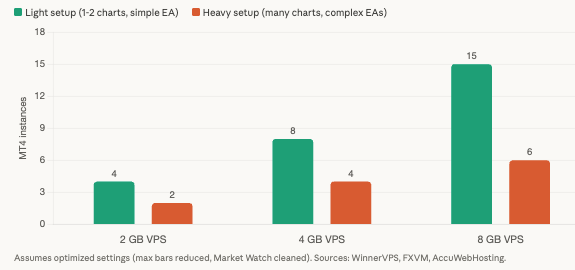
Capacity planning depends on the complexity of each instance. A light setup running one to two charts with a simple EA per instance has a very different resource profile than a heavy setup with many charts, complex indicators, and multi-pair scanners. Cross-referencing WinnerVPS, FXVM, AccuWebHosting, and SocialVPS documentation produces the following ranges:
On a 2 GB VPS, Windows Server consumes 800 MB to 1.2 GB, leaving roughly 800 MB to 1.2 GB for MetaTrader. That supports 3 to 4 light instances or 1 to 2 heavy instances with optimized settings. Headroom is tight. Any instance running with default max bars will consume its share of the remaining memory within minutes.
On a 4 GB VPS, the most common tier for solo traders, 5 to 8 light instances or 3 to 4 heavy instances is realistic. The operating system overhead is the same 800 MB to 1.2 GB, but the additional 2 GB of usable memory provides meaningful breathing room for tick volume spikes during news events and session overlaps.
On an 8 GB VPS, capacity scales to 10 to 15 light instances or 4 to 6 heavy instances. This tier supports multi-account professional setups where several broker relationships run simultaneously, with enough headroom to absorb memory growth between weekly restarts.
Resource scaling is approximately linear with instance count because the operating system overhead is shared and does not multiply. Each additional MT4 instance adds only its own footprint: approximately 150 to 200 MB at idle baseline with optimized settings, plus 30 to 50 MB per chart with indicators. MT4 is single-threaded per instance, so a 4-core VPS can run 4 instances with each effectively having a dedicated core. Beyond that, instances share CPU time. FXVM recommends 2 to 4 terminals per CPU core as a guideline.
Use the staggered batch startup script from Section 3 with 10 to 20 second delays between instances to prevent overwhelming the VPS at boot time. Keep total CPU below 80% and total RAM below 70% to handle the inevitable spikes during volatile market conditions. These are not conservative targets. They are the buffer between a VPS that runs reliably through NFP and one that freezes when every EA on every instance processes a tick volume surge simultaneously.
FAQ
Can I run MT4 on a Linux VPS using Wine?
It works but with significant limitations. Wine emulates the Windows API layer, and MT4’s core trading functions generally operate correctly. However, DLL-dependent EAs frequently fail because Wine’s DLL compatibility is incomplete. WebRequest() for Telegram or API integrations is unreliable. Font rendering affects chart readability, and some MQL5 forum users report intermittent disconnection issues that do not occur on native Windows. The cost savings of a Linux VPS ($3 to 5 per month less than Windows) rarely justify the debugging time and reliability risk for live trading. If the goal is avoiding Windows licensing costs, confirm whether your VPS provider includes the Windows license in the plan price, as most forex-focused providers do.
What happens if my VPS provider force-reboots during trading hours?
Open positions are unaffected because they exist on the broker’s server, not in MT4. Server-side stop losses, take profits, and pending orders continue executing normally. Trailing stops freeze at the last level set before the reboot and do not resume until MT4 reconnects. EAs stop processing entirely, meaning no new trades are opened, no existing trades are modified, and no monitoring logic runs. If your auto-start configuration (Autologon, Startup folder batch script, portable mode) is correctly set up, MT4 relaunches automatically after the reboot with the 60 to 120 second delay, EAs reattach from the saved profile, and trading resumes. The total downtime is typically 3 to 5 minutes. Without the auto-start chain configured, MT4 stays offline until you manually connect via RDP.
How do I migrate my MT4 setup between VPS providers?
Portable mode makes this a file copy operation. On the old VPS, close MT4 gracefully (File, then Exit, not taskkill /f) to ensure all settings write to disk. Compress the entire installation directory into a zip file. Transfer it to the new VPS via RDP file copy, cloud storage link, or SFTP. Extract to a clean non-system path, create a shortcut with /portable /skipupdate, configure Autologon and the Startup folder batch script on the new VPS, then launch. Verify via File, then Open Data Folder that portable mode is active. The only element that does not transfer is the Autologon credential, which must be reconfigured on each new machine.
Is the MetaQuotes built-in VPS better than a full Windows VPS for MT4?
The MetaQuotes VPS ($12.80 to $15 per month) offers exceptional latency, with 96% of broker servers reachable under 10 ms, because MetaQuotes partners with Equinix to host in major financial data centers. The tradeoffs are substantial: no RDP access, no DLL support (any EA calling a DLL immediately fails), no Strategy Tester, a 3 GB RAM maximum with no upgrade path, one trading account per subscription, a maximum of 16 charts on the free tier or 32 on paid, and no ability to run custom software alongside MT4. If your EA runs without DLL dependencies and you need only one account, it offers excellent value. For anything more complex, a full Windows VPS provides the flexibility that the built-in service cannot.
How do I verify my VPS is actually delivering the specs I paid for?
Run Geekbench 6 for CPU benchmarking (target 1,500+ single-core score for adequate EA processing). Use CrystalDiskMark to verify storage speed, confirming NVMe-level sequential reads (2,000+ MB/s) versus SATA SSD (~550 MB/s). Check actual available RAM in Task Manager under the Performance tab. Available memory should be within 200 to 300 MB of the advertised amount after accounting for Windows overhead. For network latency to your broker, use the MT4 server list (File, then Open an Account) or ping the broker IP directly. If any metric falls significantly below the advertised spec, contact your provider with the benchmark results before deploying live trading.
Editorial Note
This article covers MetaTrader 4 deployment and optimization on Windows VPS from an infrastructure perspective: installation configuration, resource tuning, memory management, and operational maintenance. It does not constitute financial advice, trading strategy guidance, or a recommendation of any specific EA, broker, or trading approach.
Resource figures throughout this guide are reference ranges for infrastructure planning, not guaranteed specifications. Actual RAM consumption, CPU usage, and instance capacity vary by broker data feed density, EA complexity, indicator count, chart configuration, and MT4 build version. The 40x memory reduction from max bars adjustment, for example, was measured on a specific configuration (23 M1 pairs, ForexFactory user report) and will differ with other symbol counts, timeframes, and indicator loads.
VPS provider recommendations cited in this guide (WinnerVPS, HostStage, FXVM, FXVPS.biz, Hyonix, FxSVPS) are commercially interested sources selling VPS hosting services. Their operational data is directionally consistent with independent community measurements but should not be treated as independent verification. The Market Watch CPU reduction figure of 20 to 40% is sourced from FXVPS.biz alone and has not been independently replicated.
MetaQuotes stopped issuing new MT4 broker licenses in 2018. Existing broker support continues as of the date of this article but is not guaranteed indefinitely. Traders should verify MT4 availability with their specific broker before making long-term infrastructure commitments.