Your EA runs on the VPS whether you are watching it or not. That is the point. But when MetaTrader freezes at 2 AM during a rollover spike, or an EA throws Error 130 on every order because a broker changed its minimum stop level overnight, the only device within reach is usually a phone. The question is not whether mobile access to a trading VPS is possible. It is whether the tooling is reliable enough to diagnose and fix problems from a 6-inch screen over a cellular connection.
The answer, as of 2026, is yes. Microsoft’s RDP client (now rebranded to “Windows App” across all platforms) provides full remote desktop access to a Windows VPS from iOS and Android. Third-party alternatives like Jump Desktop and aRDP fill gaps where Microsoft’s client falls short. The workflow is well-documented by VPS providers and widely used in the trading community. And the single most common concern, whether logging into the MT4/MT5 mobile app disconnects the desktop session running on the VPS, has a definitive answer: it does not. Multiple independent sources confirm that mobile and desktop sessions connect to the broker’s trade server independently.
This article covers the infrastructure side of managing a trading VPS from mobile devices. It examines which RDP apps work best on each platform, how to configure connections securely, what bandwidth mobile RDP actually consumes, and how to build a monitoring workflow that alerts you to problems before you need to RDP in at all. The focus is on the tools and configuration, not on mobile trading strategies or broker app features.
Sources include Microsoft documentation, App Store and Play Store listings with version-specific data, MQL5 forum discussions, ForexFactory community reports, and VPS provider guides. Commercially motivated sources are flagged where cited.
What Mobile MetaTrader Can and Cannot Do
The MT4/MT5 mobile app connects to your broker’s trade server. It does not connect to your VPS operating system. This distinction explains every limitation that follows, and it is the reason RDP exists as a separate tool in the mobile trading workflow.
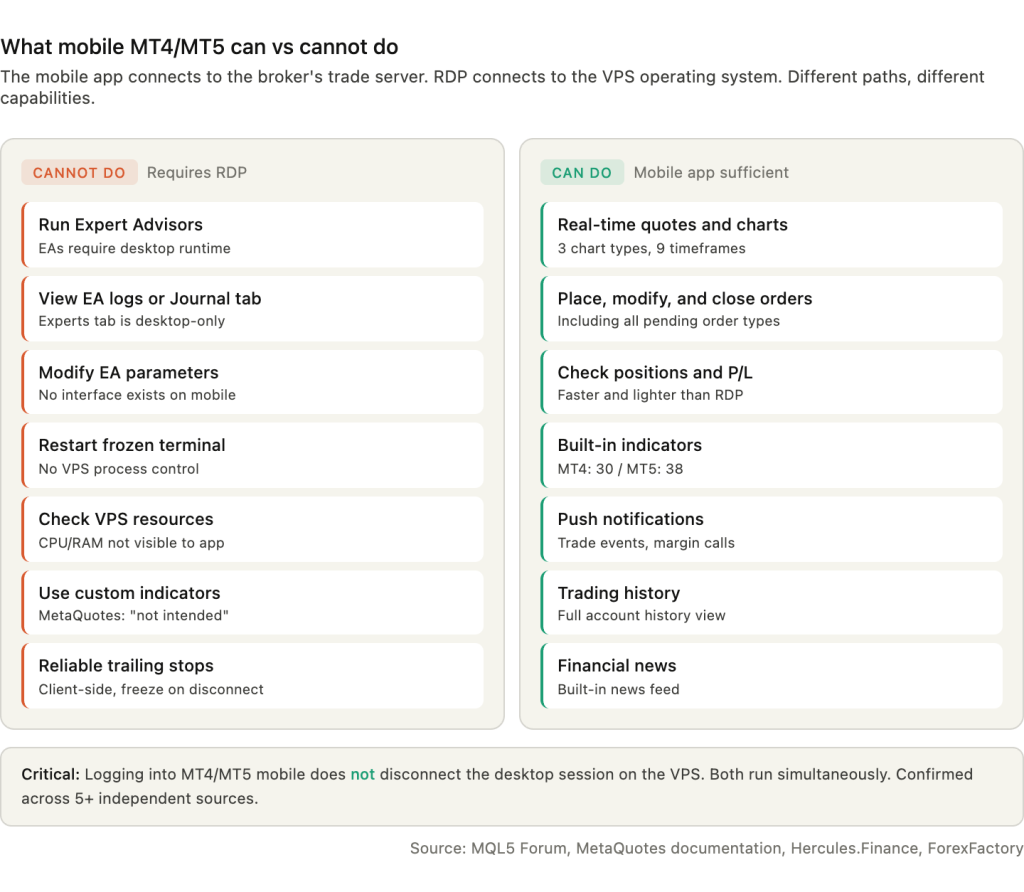
The mobile app cannot run Expert Advisors. This is not a missing feature that MetaQuotes plans to add. The MQL5 Forum confirms it explicitly: “No, it is not currently possible! Besides, it makes no sense to have an active EA running on a mobile device.” The Orbex Help Center, Hercules.Finance, Trading Heroes, and NYC Servers all corroborate this independently. EAs require the desktop terminal’s runtime environment, which the mobile app does not provide.
The list of things the mobile app cannot do extends beyond EAs. It cannot modify EA parameters. No interface exists for adjusting inputs on a running EA. The only documented workaround, placing far-away pending orders as “signals” that the EA reads and deletes, is impractical for most setups. It cannot access EA logs. The Experts tab and Journal tab are desktop-only features. It cannot restart a frozen MetaTrader terminal, because the mobile app has no awareness of the VPS process. It cannot check VPS resource usage (CPU, RAM, disk), because it communicates with the broker, not the operating system. It cannot run scripts. It cannot load custom indicators. MetaQuotes has stated they “didn’t intend to develop that feature.” And it cannot manage trailing stops reliably, because trailing stops execute locally on the terminal, not server-side. If the desktop terminal disconnects, trailing stops freeze.
What the mobile app does well is straightforward monitoring and manual order management. It provides real-time quotes, full order placement including pending orders, complete trading history, interactive charts with zoom and scroll, 30 built-in indicators on MT4 (38 on MT5), 24 analytical objects on MT4 (44 on MT5), three chart types, nine timeframes, financial news, and push notification support from the desktop platform. For checking positions, floating P/L, and placing or closing manual trades, the mobile app is faster and uses less data than an RDP session.
The critical confirmation that makes the dual-app workflow viable: logging into MT4/MT5 on your phone does not disconnect the desktop session running on the VPS. EAs continue executing. Positions remain open. Orders keep processing. This is confirmed by Hercules.Finance (“Multiple devices can login to one MT4/MT5 trading account and trade at the same time”), ForexFactory users, MQL5 Forum members, MT4Copier.com, and Tradiso broker documentation. MetaTrader uses the broker’s trade server as a hub. Each terminal, whether desktop, mobile, or web, connects independently. Switching between them does not interrupt any other session.
One caveat: within a single desktop installation, logging into a different account disconnects the previous one. But running the same account simultaneously across a VPS desktop terminal, a phone, and a tablet is standard, supported behavior. No evidence of major brokers restricting simultaneous connections was found during research.
This architecture defines the mobile management workflow. Use the MT4/MT5 mobile app for quick position checks and manual trades. Use RDP for everything the mobile app cannot do: EA management, log review, terminal restarts, VPS diagnostics, and software updates.
RDP Apps for iOS: Microsoft Windows App and Alternatives
Microsoft’s official RDP client for iOS has been through a naming transition that still causes confusion in forex VPS guides written before mid-2025. The app previously known as “Remote Desktop Mobile” or “RD Client” was renamed in-place to “Windows App Mobile” on the App Store. The listing ID (714464092) did not change. The core RDP functionality for connecting to a standalone Windows VPS on port 3389 remains identical. The rebranding reflects Microsoft’s shift toward cloud services (Azure Virtual Desktop, Windows 365), but direct RDP connections work exactly as they did under the old name.
The current version as of March 2026 is 11.2.5. It requires iOS/iPadOS 16 or later, with the upcoming Liquid Glass build expected to require iOS 26. The app is free, 200.4 MB, and rated 4.1 out of 5 across approximately 7,300 App Store ratings.
Two input modes are available. Direct Touch maps finger taps directly to clicks at the touch point, with no visible cursor. Mouse Pointer mode shows a cursor on screen, controlled by finger movement, providing more precision for small UI elements. For MetaTrader’s compact buttons and chart controls, Mouse Pointer mode is consistently more accurate on a phone screen. On iPad, full native mouse and trackpad support eliminates this concern entirely. Apple Magic Mouse 2, Magic Trackpad 2, and external USB or Bluetooth mice all work with left-click, right-click, drag, scroll, and zoom.
The iPad experience is dramatically better than iPhone for VPS management. The larger screen makes the Windows desktop usable without constant pinch-to-zoom. Split View and Slide Over allow running RDP alongside other apps. External display support extends the remote session to a connected monitor while the iPad screen becomes a virtual trackpad. With a Magic Keyboard attached, an iPad effectively functions as a thin client. iPhone is adequate for quick interventions (restarting an EA, checking terminal status) but not for extended sessions. The small screen, imprecise touch targeting on MetaTrader’s UI, and a connection bar that cannot be fully hidden all limit usability.
One iOS behavior is critical to understand. iOS aggressively manages background apps. An RDP session left idle for 30 to 40 minutes will silently disconnect. An Apple Community thread documents the experience: the screen shows the remote desktop, but taps do nothing, and after approximately 30 seconds a disconnect error appears requiring reconnection. This happens even on WiFi. However, and this is the important part, the VPS itself is unaffected. EAs continue running. Positions remain open. Only the viewing session is interrupted. Reconnecting restores the same desktop state.
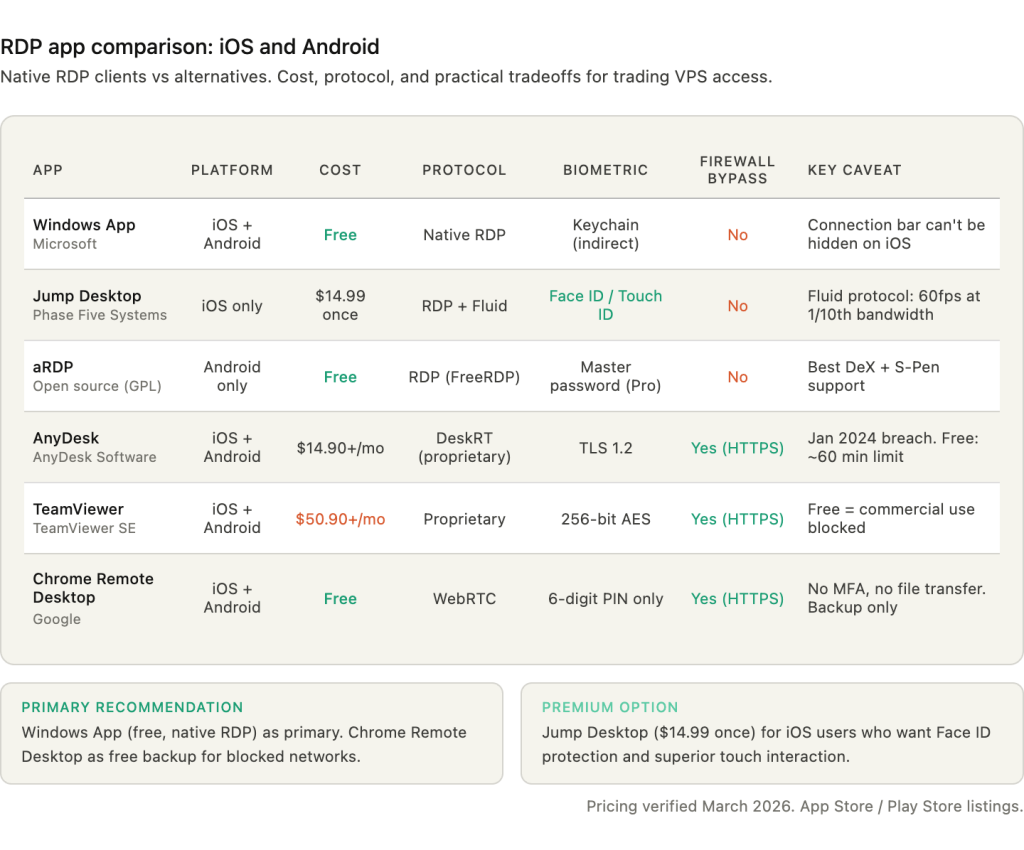
Jump Desktop ($14.99 one-time, no subscription) is the strongest third-party alternative on iOS. Rated 4.5 out of 5 from 1,600 App Store ratings at 72.1 MB, it supports RDP, VNC, and a proprietary “Fluid Remote Desktop” protocol that delivers 60 fps at roughly one-tenth the bandwidth of standard RDP. Key differentiators include explicit Face ID and Touch ID protection for sessions and server settings, multi-window support on iPadOS, iCloud connection syncing across devices, SSH tunneling with password and public key authentication, and external monitor support that treats a connected display as a true second screen rather than a mirror. Users consistently praise its touch interaction and zooming as superior to Microsoft’s client.
Other iOS options exist but serve narrower use cases. Remotix 8 supports both RDP and VNC with hardware-accelerated H.264 encoding and biometric protection. Mocha RDP ($5.99) is a straightforward RDP client licensed from Microsoft. Screens 5 by Edovia is VNC-only and requires a VNC server on the VPS, making it non-standard for forex setups. Parallels Client requires enterprise VDI infrastructure on the server side and is not usable for individual VPS connections.
RDP Apps for Android: Windows App and Alternatives
Microsoft discontinued the legacy “Remote Desktop” app for Android (com.microsoft.rdc.android) on May 27, 2025, replacing it with “Windows App” (com.microsoft.rdc.androidx). Many forex VPS setup guides still reference the old app by name. If a guide tells you to install “Microsoft Remote Desktop” from the Play Store, that listing no longer exists. The replacement is “Windows App” by Microsoft Corporation.
The current version is 11.0.0.78, released February 2026. It requires Android 11 or later, up from Android 10 for the legacy app. The app is 92.5 MB with over 5 million downloads. It supports phones, tablets, Chromebooks with Play Store access, and Meta Quest 3/3S VR headsets. Feature parity with the iOS version is close: Direct Touch and Mouse Pointer input modes, pinch-to-zoom, clipboard and local storage redirection, Connection Center with live previews, customizable resolution per session, RD Gateway support, and passkey authentication. Android adds a home screen widget for one-tap VPS connections, which is a small but practical advantage for traders who check their VPS multiple times daily.
aRDP is the standout alternative on Android. It is free, open-source (GPL, built on the FreeRDP library), and rated 4.4 out of 5 on Google Play. The current version is 6.2.8 at 33 to 37 MB. Its multi-touch implementation is well-designed: one finger for left-click, two fingers for right-click, three fingers for middle-click, with pinch-to-zoom and two-finger scroll. Dynamic resolution changes while connected mean you can switch between portrait and landscape without dropping the session. The Pro version (a paid donation variant) adds RD Gateway support, sound redirection, and master password protection.
Two features make aRDP particularly relevant for Android traders. Samsung S-Pen support includes a button right-click fix added in version 6.0.5, and Samsung DeX compatibility is confirmed. A notable Play Store review captures the practical advantage over Microsoft’s client: “absolute best, the Microsoft one is pos. the new feature of not timing out and not disconnecting when switching apps is key.”
Samsung DeX deserves specific mention because it has no iOS equivalent. DeX transforms a compatible Samsung phone into a desktop-like environment when connected to an external monitor via USB-C or Miracast. RDP apps run in windowed mode on the external display while the phone serves as a secondary screen or trackpad. Microsoft and Samsung collaborated to optimize the Remote Desktop client for DeX environments. One known issue: full-screen RDP in DeX can cause the Android title bar to obstruct the Windows taskbar. The workaround is to stretch the window without using true fullscreen mode.
The single largest pain point on Android is battery optimization. Android’s Doze mode, introduced in Android 6.0 and made more aggressive in subsequent versions, defers network access when the device is stationary with the screen off. Active RDP connections get severed. Manufacturer-specific implementations make this worse. Samsung, OnePlus, Nokia, Xiaomi, and Huawei are all documented as more aggressive than stock Android in killing background processes. The site dontkillmyapp.com catalogs the specific behavior and workarounds for each manufacturer.
The fix is straightforward but must be applied manually: navigate to Settings, Apps, find the RDP app, tap Battery, and set it to “Unrestricted.” Additionally, lock the app in the Recent Apps tray by long-pressing the card and tapping the lock icon. Keeping the device plugged in also prevents Doze from engaging. These steps are not optional for reliable RDP sessions on Android.
Connecting to Your VPS: Step-by-Step and Port Security
The initial connection from a mobile device takes under five minutes once you have the VPS IP address and credentials from your hosting provider. In Windows App (iOS or Android), tap the “+” icon, select “Add PC,” enter the VPS IP address (for example, 203.0.113.50), and add a user account with your Windows username and password. Set a friendly name like “Trading VPS NY4” to distinguish it from other connections if you manage multiple servers. Tap Save, then tap the connection tile to connect. The first connection triggers a certificate warning because the VPS uses a self-signed certificate by default. Accept it. On Android, you can pin the connection as a home screen widget for one-tap access on subsequent sessions.
The connection targets TCP and UDP port 3389 by default. Every automated scanner on the internet knows this. Exposed RDP on port 3389 attracts brute-force login attempts within hours of deployment. Changing the port does not solve the underlying security problem, but it reduces the volume of automated probes.
To change the port, open the Windows Registry on the VPS and navigate to HKEY_LOCAL_MACHINE\System\CurrentControlSet\Control\Terminal Server\WinStations\RDP-Tcp. Modify the PortNumber DWORD value, switching to Decimal input, and enter a port in the 49152 to 65535 range (above the well-known and registered port ranges). After changing the registry value, create Windows Firewall inbound rules for both TCP and UDP on the new port. Restart Remote Desktop Services with net stop termservice && net start termservice. Test the new connection from your phone using the IP:Port format (for example, 203.0.113.50:49999) before removing the old port 3389 firewall rule.
This is security through obscurity. Multiple authoritative sources, including the Berkeley Information Security Office, emphasize that determined scanners can still detect RDP on alternate ports via response signatures. Port changing reduces noise. It does not replace authentication hardening.
Network Level Authentication (NLA) provides the real protection. NLA requires valid credentials before the remote session is created, using the CredSSP protocol. Without NLA, an unauthenticated user can reach the Windows login screen, consuming server resources and exposing the system to brute-force and denial-of-service attacks. With NLA enabled, the authentication handshake completes before any session resources are allocated. All current versions of Windows App on iOS and Android fully support NLA. Enable it on the VPS via System Properties, Remote tab, selecting “Allow connections only from computers running Remote Desktop with Network Level Authentication.”
When port 3389 (or your custom port) is blocked entirely, as commonly happens on hotel WiFi and corporate networks, RD Gateway provides the solution. RD Gateway tunnels the RDP session over HTTPS on TCP port 443, which is almost never blocked because it is the standard web traffic port. Mobile RDP clients configure the gateway under Settings, Gateways, Add Gateway, entering the gateway server address. RD Gateway requires Windows Server 2012 or later for UDP transport forwarding. If your VPS provider offers an RD Gateway endpoint, this eliminates port-blocking issues entirely. If not, the alternatives in Section 11 (AnyDesk, Chrome Remote Desktop) serve as fallbacks for restricted networks.
Security: VPN, Two-Factor Authentication, and Account Lockout
RDP is the most attacked remote access protocol on the internet. Bleeping Computer reports that RDP is responsible for roughly 70 to 80 percent of all network breaches leading to ransomware. The protocol itself uses TLS encryption in transit, but the attack surface is the login endpoint. An exposed RDP port invites credential stuffing, brute-force attempts, and exploit scanning. For a trading VPS holding broker credentials and managing live positions, the security configuration is not optional hardening. It is baseline infrastructure.
The first layer is a VPN. Connecting to the VPN before initiating an RDP session means the RDP port never needs to be exposed to the public internet at all. The VPS firewall can restrict port 3389 (or whatever custom port is configured) to accept connections only from the VPN’s IP range. WireGuard is the recommended protocol for mobile trading use because of its low overhead: roughly 5 to 10 percent bandwidth increase and minimal latency addition of 5 to 20 milliseconds. OpenVPN and IPSec are functional alternatives but add more overhead. Tailscale, which is built on WireGuard, simplifies configuration and adds end-to-end encryption on top of the WireGuard tunnel.
One important interaction: VPN tunneling can cause RDP sessions using UDP transport to freeze or disconnect. Multiple sources document this behavior. If an RDP session becomes unresponsive after establishing a VPN connection, the fix is to force RDP to TCP-only transport. On the VPS, this is configured via Group Policy under Computer Configuration, Administrative Templates, Windows Components, Remote Desktop Services, Remote Desktop Session Host, Connections, “Select RDP transport protocols,” set to “Use only TCP.” This sacrifices some performance on lossy connections but eliminates the freeze problem.
The second layer is two-factor authentication. Several options integrate with Windows RDP. Azure MFA (Microsoft Entra MFA) connects via the NPS extension or AD FS and supports push notifications, one-time passwords, and phone call verification. Duo Security offers straightforward RDP integration with push notifications, OTPs, and hardware tokens, and can be configured at the RD Gateway level to protect the entire connection path. Windows Hello for Business provides passwordless authentication via biometrics or PIN. Third-party solutions from Okta, RSA SecurID, and YubiKey also integrate with RDP.
The third layer is account lockout policy. Windows 11 22H2 and later defaults to locking accounts after 10 failed attempts for 10 minutes, including Administrator accounts. For trading VPS deployments, the recommended configuration matches NIST guidance: 5 to 10 invalid attempts triggering a 15 to 30 minute lockout with a matching reset counter. Configure this via Local Security Policy (secpol.msc) under Account Policies, Account Lockout Policy.
For mobile access specifically, the credential storage decision involves a direct tradeoff. Saving the VPS password in the RDP app enables one-tap connections, which matters when responding to an alert at 3 AM. But a compromised phone with saved credentials gives an attacker full VPS access. The practical recommendation is to save credentials for speed, enable biometric protection on the RDP app (Jump Desktop supports Face ID and Touch ID explicitly; Windows App uses iOS Keychain integration for indirect biometric access; Android apps support fingerprint authentication), and use MFA as the second factor so that saved credentials alone are not sufficient to establish a session. This combination preserves fast mobile access without creating a single point of compromise.
Performance Over Cellular Data and WiFi
The most common concern about mobile RDP is bandwidth consumption. The actual numbers are lower than most traders expect, particularly for the kind of work a trading VPS check involves: glancing at a mostly static desktop with a few MetaTrader charts open.
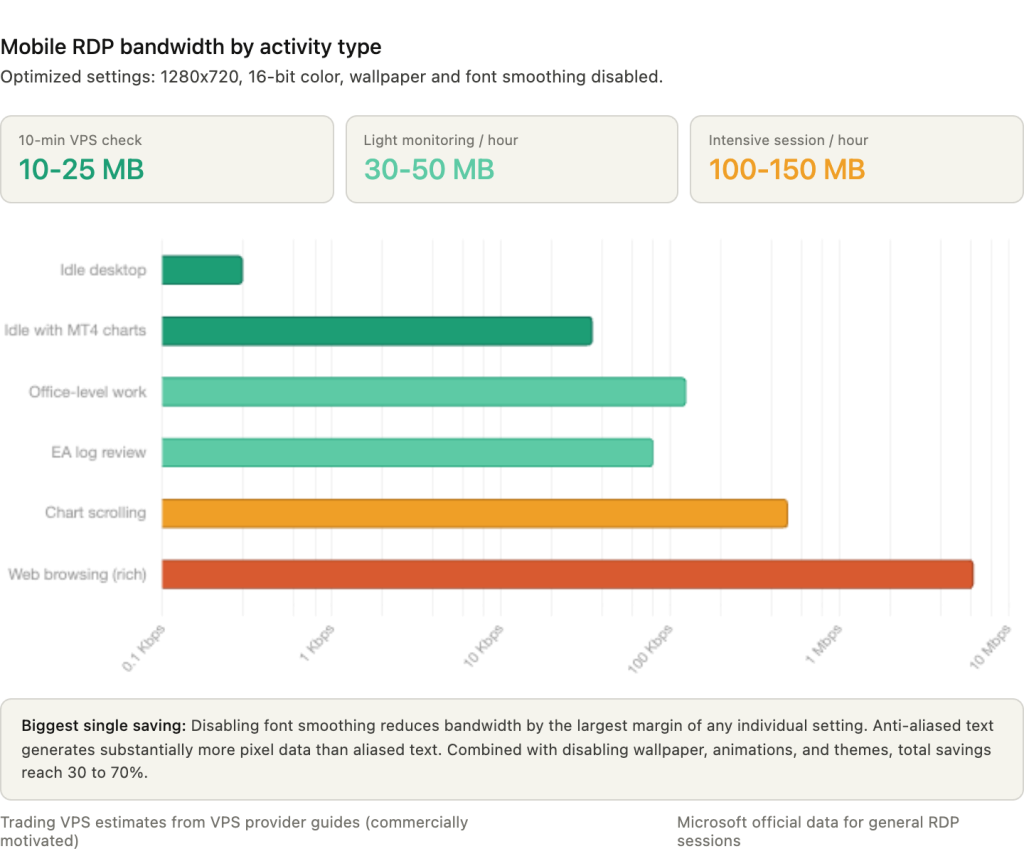
Microsoft publishes official bandwidth data for a single 1920×1080 monitor session. An idle desktop consumes 0.3 Kbps in both directions. Office-level work (typing, scrolling through documents) uses 100 to 150 Kbps. Excel with charts and formulas draws 150 to 200 Kbps. These figures reflect default RDP compression. The protocol transmits only the changed portions of the screen. When nothing moves, virtually nothing is sent. Heartbeat packets run approximately 20 bytes every 5 seconds. Individual keystrokes and mouse movements add under 100 bytes each.
For a trading VPS check at optimized settings (1280×720 resolution, 16-bit color, desktop wallpaper disabled, font smoothing off), forex VPS provider guides estimate 30 to 50 MB per hour of light monitoring. A focused 10-minute check session, the kind where you RDP in, verify the EA is running, glance at the journal for errors, and disconnect, consumes roughly 10 to 25 MB. Idle monitoring with charts that redraw infrequently sits at 2 to 5 MB per 10 minutes. Intensive sessions with frequent chart scrolling and window switching can reach 100 to 150 MB per hour. These provider estimates are from commercially motivated sources but are directionally consistent with Microsoft’s official data and independent user measurements.
Disabling visual effects produces the largest bandwidth reduction. Font smoothing is the single highest-impact setting to disable, because anti-aliased text requires dramatically more data to render than aliased text. Disabling desktop wallpaper, window animations, desktop composition, and visual themes together reduces bandwidth by an estimated 30 to 70 percent. Keep “Persistent bitmap caching” enabled. It stores repeated screen elements locally on the phone, so static UI elements like the MetaTrader toolbar and Market Watch panel are transmitted once and then redrawn from cache on subsequent frames.
Network latency determines how responsive the session feels, independent of bandwidth. WiFi typically delivers 5 to 30 milliseconds, which feels essentially local. 5G networks achieve 10 to 30 milliseconds, close to WiFi performance. 4G LTE runs 30 to 80 milliseconds, which is usable for all trading VPS tasks but introduces noticeable input lag on fast mouse movements. No formal Microsoft benchmarks comparing cellular versus WiFi performance exist, but user reports consistently describe RDP as “fully usable” over 4G LTE.
Packet loss matters more than raw latency for session stability. RDP’s TCP transport suffers from head-of-line blocking when packets are lost: a single dropped packet stalls the entire stream until retransmission completes. UDP transport, available since RDP 8.0 on Windows Server 2012 and later, handles loss more gracefully by prioritizing newer frames over recovering old ones. Both TCP port 3389 and UDP port 3389 must be open for dual transport to function. On cellular connections with intermittent signal, UDP transport produces noticeably smoother sessions. If the VPS runs Windows Server 2012 or later, ensure UDP is not blocked by the firewall.
Practical Use Cases: What You Actually Do from Your Phone
Most mobile RDP sessions to a trading VPS last under 10 minutes. You connect, verify something, fix something, and disconnect. Understanding which tasks require RDP and which can be handled through the MT4/MT5 mobile app determines how often you actually need to open a remote desktop session.
Checking EA status is the most frequent reason to RDP in. The Experts tab at the bottom of the MetaTrader desktop terminal shows real-time EA messages, including errors like “trade context busy,” “invalid stops,” and “off quotes.” This tab does not exist in the mobile app. If an EA has stopped executing and you need to know why, RDP is the only path. On a phone screen, the Experts tab text is small. Pinch-to-zoom on the tab area, read the last few lines, and you have the diagnosis in under a minute.
Restarting a frozen MetaTrader terminal is the second most common task. Open Task Manager via RDP (right-click the taskbar, or Ctrl+Alt+Del through the RDP client’s special key menu), locate the terminal.exe process, end it, and relaunch MetaTrader from the desktop shortcut or taskbar. If the terminal was configured with a shortcut in the Windows Startup folder using the /portable flag, it relaunches with the correct settings automatically. TradingFXVPS notes that “small screens make detailed setup challenging, so mobile access is best suited for monitoring and emergency interventions.” This is accurate. Restarting a terminal is quick. Reconfiguring one from scratch on a phone is not.
Checking VPS resource usage requires RDP because the mobile app has no visibility into the operating system. Open Task Manager and check the Performance tab. TradingFXVPS recommends considering a VPS upgrade when CPU usage regularly exceeds 80 percent or RAM utilization stays above 85 percent. Each idle MT4 instance consumes 100 to 200 MB of RAM, and that figure grows over weeks of continuous operation. If Task Manager shows the system deep into swap territory, the immediate fix is to restart the terminal. The long-term fix is either reducing the workload (fewer charts, lower max bars setting) or upgrading the VPS plan.
Reviewing EA logs provides the forensic detail that the Experts tab summarizes. Navigate to File, Open Data Folder, then MQL4\Logs or MQL5\Logs. Each trading day generates a new log file with timestamped entries. On a phone screen, navigating the Windows file explorer through RDP is awkward but functional. The information is there. The experience is just slower than on a desktop.
Disabling EAs during high-impact news events is a single-button operation. The AutoTrading toggle in the MT4/MT5 toolbar globally enables or disables all running EAs. The button is large enough to tap reliably even on a phone screen. For NFP, FOMC, and other scheduled releases where spreads widen dramatically and execution quality degrades, toggling AutoTrading off before the release and back on afterward is a common risk management practice. This is one of the few tasks where mobile RDP is as efficient as desktop access.
Restarting the VPS itself can be done through RDP (Start menu, Power, Restart) or through the VPS provider’s web control panel from a mobile browser. Most providers, including those using SolusVM, Virtualizor, or Proxmox control panels, offer mobile-responsive interfaces with one-click reboot. The provider route is faster and does not require an active RDP session, which matters when the VPS is unresponsive to RDP connections. ForexFactory users consistently emphasize one prerequisite: ensure MetaTrader is configured as a startup program so it relaunches automatically after the reboot completes.
Monitoring Without Maintaining a Constant RDP Session
The best mobile RDP session is the one you do not need to open. Continuous RDP drains battery, consumes mobile data, and forces you to stare at a desktop UI on a phone screen. A monitoring workflow that pushes alerts to your phone when something goes wrong, and leaves you alone when everything is running normally, is more practical than checking in manually.
MetaTrader has built-in push notification support that most traders underuse. The setup requires the MT4/MT5 mobile app installed on your phone and the MetaQuotes ID from the app’s Settings, Messages section. Enter that ID in the desktop terminal on the VPS under Tools, Options, Notifications. Multiple IDs can be added as a comma-separated list if you want alerts on more than one device. Once configured, the terminal automatically sends push notifications for trade executions, balance operations, and margin call state changes. EAs can send custom push notifications via the SendNotification() MQL function, which means a pattern EA can notify you when it detects a setup, enters a trade, encounters an error, or hits a predefined drawdown threshold. Each notification is limited to 160 characters. Notifications arrive regardless of whether the MT5 mobile app is actively running in the foreground.
Push notifications cover trade events. They do not cover the scenario where MetaTrader itself crashes or the VPS loses connectivity. For that, external monitoring is necessary.
UptimeRobot is the most widely recommended free option. The free tier provides up to 50 monitors at 5-minute check intervals with a dedicated mobile app for iOS and Android that supports push notifications and home screen widgets. Monitor types include HTTP(S), Ping, Port, Keyword, Heartbeat, and DNS. For a trading VPS, a Ping monitor on the VPS IP address alerts you within 5 minutes when the server goes offline. UptimeRobot also supports 16 or more notification channels including email, SMS, voice calls, Slack, Telegram, Discord, and Microsoft Teams. One user testimonial captures the use case directly: “UptimeRobot helps me keep an eye on my VPS, which sometimes experiences sudden spikes in CPU utilization and stops working until I restart it. UptimeRobot notifies me immediately on my phone.”
HetrixTools fills a gap that UptimeRobot does not cover: server-level resource monitoring. Its free tier provides 3 monitors with an installable agent that tracks CPU, RAM, network, and disk usage against configurable thresholds. It can monitor specific processes, meaning you can configure an alert when terminal.exe stops running on the VPS. Notifications route through email, SMS, Telegram, Discord, Slack, or webhooks. The dashboard is mobile-responsive but there is no dedicated app.
A purpose-built solution exists on the MQL5 Market: the MetaTrader Uptime Monitoring utility, available free for both MT4 and MT5. It attaches to a chart on the desktop terminal and sends periodic heartbeat signals to an external monitoring service. If the heartbeat stops because MetaTrader crashed, froze, or lost its broker connection, the monitoring service triggers an alert. It integrates with UptimeRobot’s Heartbeat monitor type and with Cronitor.io.
The three layers combine into a complete workflow. UptimeRobot Ping monitors the VPS itself, alerting when the server is unreachable. The MetaTrader Uptime Monitoring EA watches the terminal process, alerting when MetaTrader crashes while the VPS remains online. MetaTrader push notifications cover trade events and margin warnings. An alert arrives on your phone. You check the MT4/MT5 mobile app for a quick position overview. If the problem is a crashed terminal or unresponsive VPS, you reboot through the provider’s mobile control panel or RDP in for deeper intervention. Each layer catches a different failure mode, and none of them require you to maintain a constant RDP session.
Recommended Mobile RDP Settings for Trading
The default RDP connection settings prioritize visual fidelity over bandwidth efficiency. For a trading VPS accessed from a phone on a cellular connection, the priorities are reversed. The goal is a responsive session that transmits the minimum data necessary to read chart states, check EA logs, and tap buttons accurately.
Resolution is the first setting to change. On a phone, set the remote session to 1280×720 or 1024×768. This makes MetaTrader’s UI elements physically larger on screen, reducing the need for constant pinch-to-zoom and improving tap accuracy on small buttons. On a tablet connected to WiFi, 1920×1080 works well. On a tablet over cellular, 1440×900 or 1600×900 balances readability with data usage. Higher resolution means more pixels transmitted per frame change, which directly increases bandwidth consumption.
Color depth should be set to 16-bit (High Color) on cellular connections. The visual difference from 32-bit is minimal for trading UIs. Candlestick colors remain clearly distinguishable. The bandwidth reduction is significant. Reserve 32-bit for stable WiFi sessions where data cost is not a concern.
The Experience tab in the RDP connection settings (or the equivalent section in third-party clients) controls visual effects that consume bandwidth disproportionate to their value. Disable desktop wallpaper and set the background to a solid dark color. Disable font smoothing, which is the single highest-impact setting for bandwidth reduction because anti-aliased text generates substantially more pixel data than aliased text. Disable desktop composition, window content display while dragging, menu and window animations, and visual themes. Keep “Persistent bitmap caching” enabled. This setting stores static screen elements (toolbar icons, window borders, the Market Watch header) locally on the phone so they are transmitted once and then redrawn from cache on subsequent frames. For a MetaTrader desktop that is mostly static between tick updates, bitmap caching eliminates a large proportion of redundant data transfer.
Disable audio redirection entirely. A trading VPS has no reason to stream sound to your phone, and the audio channel consumes bandwidth continuously even when silent. Enable text clipboard redirection only. Copying trade IDs or account numbers between the remote session and local apps is occasionally useful. Disable file and image clipboard redirection for both security and bandwidth reasons.
Set the session to landscape orientation. MetaTrader’s layout is horizontally oriented with the Navigator panel on the left, charts in the center, and the Terminal panel at the bottom. Portrait mode compresses this layout into an unusable vertical strip. On the VPS side, set “time limit for disconnected sessions” and “time limit for active but idle sessions” to Never via Group Policy. Trading terminals need to remain running indefinitely, and aggressive idle timeouts will close your MetaTrader session after a disconnected RDP viewing session times out.
Alternatives When RDP Is Blocked
Hotel WiFi, corporate networks, and some public hotspots block port 3389. Custom RDP ports above 50,000 are sometimes blocked as well. A Microsoft engineer documented that Azure VMs on high-numbered custom ports were unreachable from hotel networks while standard port 3389 worked, and some hotels block 3389 too. When native RDP cannot connect, three alternatives provide remote access using HTTPS or WebRTC protocols that pass through virtually any firewall.
AnyDesk uses a proprietary DeskRT codec that achieves 16.5 milliseconds of latency and 59.9 FPS in independent benchmarks by ScienceSoft. It tunnels through HTTPS/TLS, bypassing port restrictions entirely. The free version is limited to approximately 60-minute sessions before requiring reconnection. Commercial licensing starts at $14.90 per month (Solo plan, billed annually) and shifted from user-based to connection-based pricing in October 2025. One security concern requires disclosure: in January 2024, AnyDesk suffered a breach in which source code and a code-signing certificate were stolen. Over 500 malicious binaries signed with the stolen certificate were subsequently uploaded to VirusTotal. AnyDesk has since rotated its certificates and released patched versions, but the incident warrants awareness.
TeamViewer is the most feature-rich alternative but carries a cost trap for forex traders. The free license explicitly prohibits commercial use, and TeamViewer aggressively detects and enforces this restriction. Managing a trading VPS qualifies as commercial use. Sessions get time-limited or blocked outright after detection. The minimum compliant plan is Business at $50.90 per month billed annually. Median real annual spend with add-ons reaches $10,424 according to costbench.com analysis from 2026. Auto-renewal requires 28 days cancellation notice. For most traders, this pricing makes TeamViewer impractical as a primary or even secondary remote access tool.
Chrome Remote Desktop is the recommended free backup. It uses WebRTC over HTTPS, works through virtually any firewall, and has no commercial use restrictions. Install the Chrome browser on the VPS, add the Chrome Remote Desktop extension, configure a 6-digit PIN, and the VPS becomes accessible from any device with Chrome. The limitations are real: no multi-monitor support, no file transfer, PIN-only authentication with no MFA option, and performance inferior to native RDP. But as a free fallback for the specific scenario where RDP is blocked and you need to check on your EAs from a hotel room, it is sufficient. Install it alongside RDP as insurance. The bandwidth cost is minimal, and the setup takes under five minutes.
FAQ
Can I use TeamViewer’s free license to manage my trading VPS?
No. TeamViewer’s free license is restricted to personal, non-commercial use, and the company actively detects commercial usage patterns. Managing a trading VPS, even a personal one running EAs on a live account, qualifies as commercial use under their terms. Sessions will be time-limited or blocked after detection, often within days. The minimum compliant license is the Business plan at $50.90 per month billed annually. For most traders, native RDP (free, built into Windows) with Chrome Remote Desktop as a backup (also free) covers the same functionality at zero cost.
Does using RDP drain my phone battery quickly?
Yes, noticeably. RDP maintains a continuous network connection and renders a remote desktop stream, both of which consume processing power and radio activity. The drain is worse on cellular than WiFi, and worse at higher resolutions and color depths. Mitigation steps: lower resolution to 1280×720, disable font smoothing and visual effects, keep sessions short (under 10 minutes for routine checks), and keep the device plugged in during extended sessions. The monitoring workflow in Section 9 reduces the need for prolonged RDP sessions, which is the most effective battery conservation strategy.
Can I manage my VPS from a Samsung Galaxy phone using DeX?
Yes. Samsung DeX transforms a compatible Galaxy phone into a desktop-like environment when connected to an external monitor via USB-C or Miracast. Both Microsoft’s Windows App and aRDP are confirmed working in DeX mode. RDP apps run in windowed mode on the external display while the phone serves as a trackpad or secondary screen. Microsoft and Samsung collaborated specifically to optimize the Remote Desktop client for DeX environments. One known issue: full-screen RDP in DeX can cause the Android title bar to overlap the Windows taskbar. Stretching the window without entering true fullscreen mode avoids this.
What happens to my EAs if my RDP session disconnects?
Nothing. RDP is a viewing and input session only. Disconnecting from RDP, whether intentionally or due to a dropped connection, does not affect the Windows desktop session running on the VPS. MetaTrader continues running. EAs continue executing. Positions remain open. Orders keep processing. This applies equally to disconnections caused by iOS background app management, Android Doze mode, network loss, and manual disconnect. The VPS operates independently of whether anyone is watching it.
Which iPad model works best for VPS management?
Any iPad running iPadOS 17 or later supports the current Windows App. The practical differentiator is input method, not processing power. An iPad with an attached keyboard and trackpad or mouse (Magic Keyboard, Smart Keyboard Folio with a Bluetooth mouse, or any third-party keyboard case) provides a near-desktop RDP experience with precise cursor control, keyboard shortcuts, and a screen large enough to use MetaTrader without constant zooming. Without a keyboard and pointing device, the iPad experience reduces to the same pinch-to-zoom and tap workflow as a phone, just on a larger screen. External display support extends the remote session to a connected monitor, effectively turning the iPad into a thin client. The oldest supported model is the iPad 6th generation from 2018.
References
- Microsoft Learn. Official documentation for Windows App Mobile (iOS/iPadOS) and Windows App (Android). Covers connection setup, input modes (Direct Touch, Mouse Pointer), keyboard remapping, NLA configuration, RD Gateway setup, UDP/TCP transport selection, session timeout Group Policy settings, and port change procedures. Deprecation timeline confirms Remote Desktop app (UWP) end of support May 27, 2025, and Remote Desktop Client (MSI) end of support March 27, 2026. iOS/iPadOS client renamed in-place to Windows App Mobile, same App Store listing ID 714464092. Used throughout this article for all connection, configuration, and security procedures. Source quality: primary platform documentation.
- Microsoft Learn, Azure Virtual Desktop documentation. Official bandwidth data for RDP sessions at 1920×1080: idle 0.3 Kbps, office work 100 to 150 Kbps, Excel 150 to 200 Kbps, web browsing 6 to 6.5 Mbps. Heartbeat packets approximately 20 bytes every 5 seconds. Input events under 100 bytes per operation. Used for the bandwidth analysis in the performance section. Source quality: primary vendor documentation with controlled test methodology.
- Apple App Store and Google Play Store listings. Version-specific data for Windows App Mobile (iOS: version 11.2.5, 200.4 MB, 4.1/5 rating from ~7,300 reviews, requires iOS/iPadOS 16), Windows App (Android: version 11.0.0.78, 92.5 MB, requires Android 11, 5M+ downloads), Jump Desktop (iOS: $14.99, 4.5/5 from 1,600 ratings, 72.1 MB), aRDP (Android: 4.4/5 on Google Play, free/GPL, version 6.2.8). Used for app recommendations and version requirements. Source quality: primary distribution platform listings.
- Apple Community Forum. Thread documenting iOS background app behavior: iPad idle for 30 to 40 minutes with RDP open results in silent disconnection, screen shows remote desktop but taps become unresponsive, disconnect error appears after approximately 30 seconds. Used for the iOS background disconnect warning. Source quality: end-user report, consistent with documented iOS background app management behavior.
- MQL5 Forum. Confirmation that mobile terminals cannot run Expert Advisors: “No, it is not currently possible! Besides, it makes no sense to have an active EA running on a mobile device.” MetaQuotes statement that custom indicators on mobile were not a planned feature. Pending-order workaround for remote EA parameter modification documented as impractical. Used for the mobile MT4/MT5 capabilities and limitations section. Source quality: official platform forum with MetaQuotes staff participation.
- Multiple independent sources confirming simultaneous mobile/desktop login. Hercules.Finance (FXTM FAQ): “Multiple devices can login to one MT4/MT5 trading account and trade at the same time.” ForexFactory user reports of synchronized desktop and mobile sessions. MQL5 Forum confirmation of multi-device same-account usage. MT4Copier.com documentation. Tradiso broker documentation. Used for the critical confirmation that mobile login does not disconnect VPS desktop sessions. Source quality: high confidence, five or more independent sources with zero contradictions found.
- Bleeping Computer. Reports RDP responsible for approximately 70 to 80 percent of all network breaches leading to ransomware. Used for the security section threat context. Source quality: established cybersecurity news publication.
- Berkeley Information Security Office. Documentation that changing RDP port numbers is security through obscurity and not sufficient as a standalone measure. Used to qualify the port-change recommendation. Source quality: university security office, non-commercial.
- sobrii.io, costbench.com, fahimai.com. Pricing analysis for AnyDesk (Solo $14.90/month, licensing shift October 2025) and TeamViewer (Business $50.90/month, median annual spend $10,424). AnyDesk January 2024 breach documented: source code and code-signing certificate stolen, 500+ malicious binaries signed with stolen certificate. Used for the alternatives section pricing and security caveats. Source quality: third-party comparison platforms. sobrii.io is an IT management platform and potential competitor to products reviewed. Pricing figures cross-referenced across multiple sources.
- ScienceSoft. Independent benchmark of AnyDesk DeskRT codec: 16.5 milliseconds latency, 59.9 FPS. Used for AnyDesk performance claim. Source quality: IT services company. Benchmark may be commercially motivated. Performance figures cited as claimed rather than independently verified.
- Android Developers documentation, dontkillmyapp.com. Doze mode behavior documented: network access deferred when device stationary with screen off, wakelocks ignored, alarms deferred. Manufacturer-specific aggressive battery management cataloged for Samsung, OnePlus, Nokia, Xiaomi, and Huawei. Whitelist procedure (Battery setting to Unrestricted) documented. Used for the Android battery optimization section. Source quality: primary platform documentation (Android Developers) supplemented by community-maintained manufacturer database (dontkillmyapp.com).
- Forex VPS provider guides (commercially motivated). TradingFXVPS, NYC Servers, FXVM, Cloudzy, Bacloud. Recommended RDP settings (1280×720 resolution, disable wallpaper/font smoothing), bandwidth estimates (30 to 50 MB/hour optimized), resource thresholds (80% CPU, 85% RAM as upgrade signals), auto-restart configuration, and push notification setup workflows. TradingFXVPS quote: “Small screens make detailed setup challenging, so mobile access is best suited for monitoring and emergency interventions.” Used across multiple sections for practical configuration recommendations. Source quality: technically accurate but commercially motivated. All are VPS hosting providers with direct financial interest. Bandwidth and performance claims are directionally consistent with Microsoft’s official data.
- ForexFactory Forum. Active discussions on VPS hosting for EAs confirming mobile RDP as standard workflow, VPS costs of $30 to 50 per month, emphasis on configuring MetaTrader as a startup program for auto-restart after reboots. Used for community validation of practical workflows. Source quality: community forum, anecdotal but consistent across multiple threads and users.
Editorial Note
This article covers the tools and configuration for managing a trading VPS remotely from mobile devices. It is not financial advice and does not recommend any trading strategy, broker, or account type. The RDP workflow described here applies to any Windows VPS regardless of what trading platform or EA runs on it.
App version numbers, ratings, pricing, and feature availability were verified against App Store, Play Store, and vendor listings as of March 2026. Mobile app ecosystems change frequently. Microsoft’s deprecation of the legacy Remote Desktop app and renaming to Windows App demonstrate that specific versions and branding can shift between publication and reading. Confirm current availability before downloading.
Bandwidth estimates for mobile RDP sessions combine Microsoft’s official measurements with forex VPS provider guides. The provider figures (30 to 50 MB/hour at optimized settings, 10 to 25 MB per 10-minute session) originate from commercially motivated sources selling VPS hosting. They are directionally consistent with Microsoft’s data but should be treated as approximate ranges, not guaranteed figures. Actual consumption depends on resolution, color depth, chart update frequency, and network conditions.
Security recommendations (VPN, NLA, MFA, account lockout) reflect established best practices as of early 2026 but do not constitute a complete security audit. The FBI ransomware statistic (70 to 80 percent of breaches via RDP) is cited from Bleeping Computer reporting and was not independently verified against FBI primary sources.
TeamViewer and AnyDesk pricing, licensing terms, and breach history were verified against multiple third-party comparison platforms. Pricing structures change. Confirm current terms before purchasing.