
Pattern scanner EAs are not latency-sensitive. They are resource-sensitive. A triangle forming on the H4 timeframe develops over 16 to 20 hours. Whether your VPS detects the breakout with 5ms or 200ms network latency makes no practical difference to fill quality. But running out of RAM at 3am because your scanner loaded 28 currency pairs with default history depth into memory will crash MetaTrader and miss the breakout entirely.
This distinction matters because it changes how you size and configure a VPS for this workload. Most forex VPS guidance focuses on execution speed and broker proximity. Pattern scanning is a different infrastructure problem: it demands enough RAM to hold multi-pair, multi-timeframe price data in memory, enough CPU to run pattern classification on every scan cycle, and enough uptime to monitor formations that develop across trading sessions while you sleep.
This article is for traders running or planning to run chart pattern recognition EAs across multiple symbols and timeframes on a VPS. It assumes you understand the patterns themselves. The focus is on what happens to your server when you automate that detection and how to keep it running reliably around the clock.
Resource figures in this article are drawn from MQL5.com documentation, MetaQuotes developer statements, published threading model tests, and operational data from VPS hosting environments. Where figures vary by configuration, ranges are provided.
What Multi-Pair Scanning Demands from a VPS
The resource profile of a pattern scanner is dominated by two factors: how much price history it holds in memory and how many symbol/timeframe combinations it processes per cycle. Both scale in ways that surprise traders who upgrade from running one EA on one chart to scanning 20+ pairs across multiple timeframes.
Memory Handling: MT4 vs MT5
MT4 and MT5 manage historical data differently, and the difference directly affects RAM consumption on a VPS.
MT5 stores all historical data as M1 bars internally. Higher timeframes are constructed on demand from this M1 base. When a scanner EA requests 500 H4 bars for GBPUSD, MT5 builds them from stored M1 data and holds the constructed timeseries in memory. The platform documentation states this cached data is released “if not called for a long time,” but developers consistently report this mechanism is unreliable during active scanning. One MQL5 forum user scanning 500 symbols measured approximately 1 GB consumed by cached data alone. Another loading 900 symbols reported MT5 consuming 47 GB of RAM.
MT4 stores each timeframe’s data separately. There is no M1 base construction. Each symbol/timeframe combination is truly independent data. Accessing a symbol or timeframe not currently charted triggers a history download, requiring the EA to handle the delay gracefully. The upside: MT4‘s memory behavior is more predictable. The downside: there is no data sharing between timeframes of the same symbol.
One detail that catches traders off guard: accessing symbols programmatically through functions like CopyRates() or iCustom() does not create visible chart windows, but it still loads price data into RAM. The absence of a chart on screen does not mean the absence of memory consumption. A scanner EA quietly requesting data for 28 pairs across 4 timeframes creates 112 data sets in memory regardless of how many charts are visually open.
The architectural choice between scanning many pairs on one timeframe versus fewer pairs across multiple timeframes creates different resource bottlenecks. Scanning 28 pairs on one timeframe (28 combinations) tends to consume more total RAM because each additional symbol requires a completely separate price history. Scanning 8 pairs across 4 timeframes (32 combinations) uses more CPU per cycle because indicator calculations run 32 times, but in MT5 the additional timeframes of the same symbol share the M1 data base. Neither approach is inherently better. The right choice depends on whether your VPS configuration is more constrained on RAM or CPU.
The “Max Bars in Chart” Setting

This is the single most impactful VPS optimization for pattern scanning workloads, and most traders never touch it.
MetaTrader defaults to 512,000 bars of history per chart. For a scanner running 20+ charts, that default loads an enormous amount of data into memory. One ForexFactory user documented the difference precisely: with 500,000 bars loaded across 23 M1 pairs, MetaTrader consumed over 1 GB of RAM. After reducing the setting to 5,000 bars, consumption dropped to approximately 20 MB for the same configuration.
Pattern scanners typically need only 200 to 500 bars of recent history per timeframe to detect formations. A head and shoulders on the H4 chart requires maybe 200 bars of lookback. Setting max bars to 5,000 to 10,000 in Tools > Options > Charts provides more than adequate history for pattern detection while keeping memory consumption manageable.
This single change often makes the difference between a 2 GB VPS struggling and a 2 GB VPS running comfortably. Before upgrading your plan, check this setting first.
RAM Consumption by Configuration
To size a VPS correctly, you need to account for three layers of memory consumption: the operating system, the MetaTrader platform itself, and the actual chart and EA workload.
Windows Server baseline: 800 MB to 1.2 GB. This is unavoidable overhead before MetaTrader even launches.
Platform baseline: MT4 idles at roughly 150 to 200 MB with no charts open. MT5 ranges from 100 to 200 MB in minimal configuration up to 400 to 500 MB if community features (calendar, market, signals) are left enabled. Disabling those features on a VPS is not optional for scanning workloads.
Per-chart overhead: roughly 100 MB per chart on higher timeframes (H1/H4) and up to 300 MB on M1, assuming moderate max bars settings. Each indicator attached to a chart adds approximately 10 MB regardless of buffer count, because MT5 maintains a separate copy of price data per indicator.
A critical and frequently overlooked difference: MT5’s 64-bit architecture uses substantially more memory than MT4’s 32-bit build for identical configurations. Direct comparison testing showed MT5 consuming 110 to 135 MB versus MT4 at 20 to 35 MB for the same broker, same charts, same indicators, with max bars set to 2,000. If you are running tight on RAM, this gap matters.
MetaQuotes CEO Renat Fatkhullin has stated that “SSD is required, NVMe is better” for MetaTrader deployments. This reflects the platform’s storage demands during startup, chart loading, and log writing. Loading months of M1 data for 20+ pairs takes minutes on HDD versus seconds on NVMe. More importantly for scanners running continuously, log file writing becomes a bottleneck on spinning disks during high-volume periods, and recovery after any crash is significantly faster on NVMe.
Sizing a VPS for Pattern Scanning
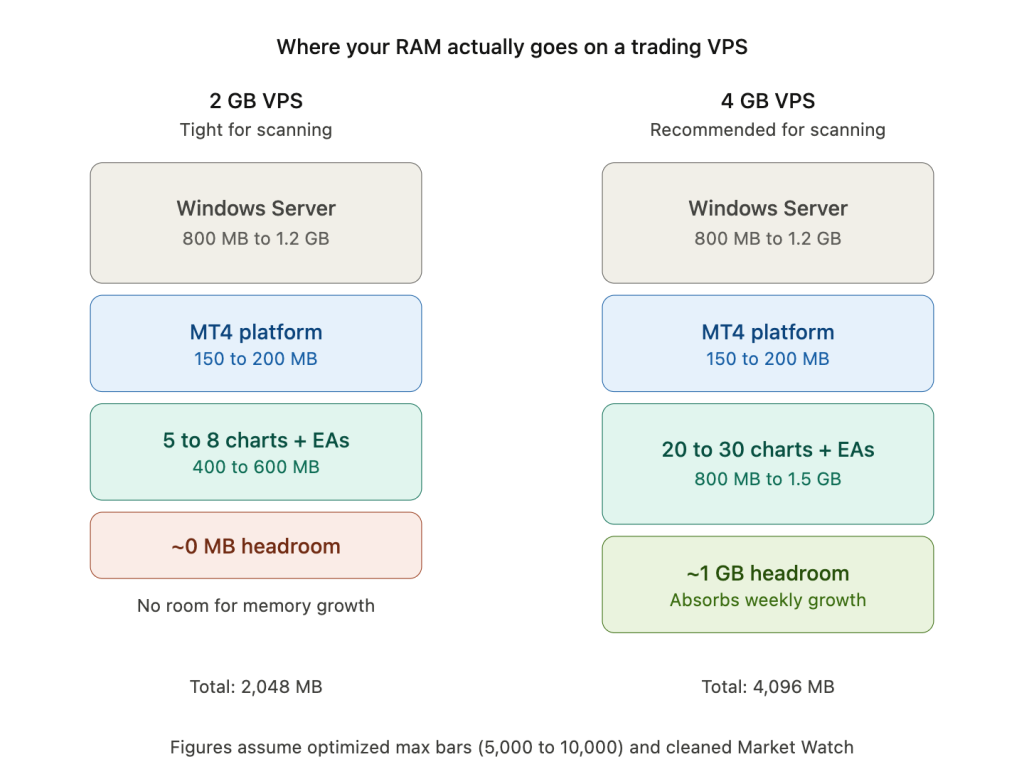
The sizing guidance below assumes optimized configurations: max bars reduced to 5,000 to 10,000, Market Watch cleaned to only monitored symbols, and unnecessary MT5 features disabled. Unoptimized setups will hit resource limits at significantly lower chart counts.
2 GB VPS
After Windows Server takes 800 MB to 1.2 GB, roughly 800 MB to 1.2 GB remains for MetaTrader and your EAs. That is tight. A 2 GB plan realistically supports one MT4 terminal with 10 to 15 optimized charts, or one MT5 terminal with 5 to 8 charts. Running a 20+ pair scanner on 2 GB is not viable. The platform will either slow to a crawl as it swaps to disk or crash outright during a high-tick-volume session.
This tier works for traders running a single scanner EA monitoring a focused watchlist on higher timeframes (H1/H4) with low max bars settings. It does not work for multi-pair, multi-timeframe scanning.
4 GB VPS
This is where most pattern scanning setups become practical. With roughly 2.8 to 3.2 GB available after OS overhead, a 4 GB plan supports one terminal running 20 to 30 optimized charts with about 1 GB of headroom for memory growth during extended operation. One trader running 20+ pairs documented that upgrading from 2 GB to 4 GB eliminated their memory issues entirely.
The headroom matters. Pattern scanning workloads grow in memory over time due to tick history accumulation and cached timeseries that persist longer than the platform documentation suggests. Without headroom, a setup that runs fine on Monday morning will start swapping by Thursday.
8 GB VPS
Ample capacity for multi-terminal setups. An 8 GB plan handles 4 to 6 MT5 terminals or 6 to 10 MT4 terminals, each running 20+ charts with complex indicators. This is the tier for traders who run separate scanner instances across multiple brokers or who combine pattern scanning with execution EAs on different terminals.
At this tier, RAM is rarely the constraint. CPU becomes the limiting factor if all terminals are running computationally heavy scans simultaneously during high-volatility sessions.
CPU Sizing
Normal live trading with one to three terminals uses 10 to 30% average CPU. During major news events, tick volume surges 5 to 10x and CPU can spike to 50 to 60%. A heavy dashboard-style scanner iterating through all pairs and timeframes with multiple custom indicators pushes 20%+ CPU utilization on a single chart alone.
For most MetaTrader pattern scanning, the workload is RAM-bound rather than CPU-bound during normal market conditions. CPU becomes critical during news spikes and when running multiple heavy scanners simultaneously. As covered in the threading section, single-core clock speed generally matters more than core count unless your scanner architecture distributes work across separate charts on different symbols.
Storage
NVMe is not a luxury for scanning workloads. It is a practical requirement. Loading months of M1 data for 20+ pairs at terminal startup takes minutes on spinning disk and seconds on NVMe. During continuous operation, MetaTrader writes to log files on every tick event. On HDD, this write load becomes a measurable bottleneck during high-volume periods. After any crash or forced restart, recovery time on NVMe is dramatically shorter, which directly affects how quickly your scanner gets back to monitoring.
Memory Leaks and Long-Running Stability
A pattern scanner that works perfectly on Monday morning can crash MetaTrader by Friday. This is not a bug in your EA. It is a well-documented characteristic of how MetaTrader terminals behave during extended continuous operation, and it is one of the most common reasons traders lose uptime on a VPS.
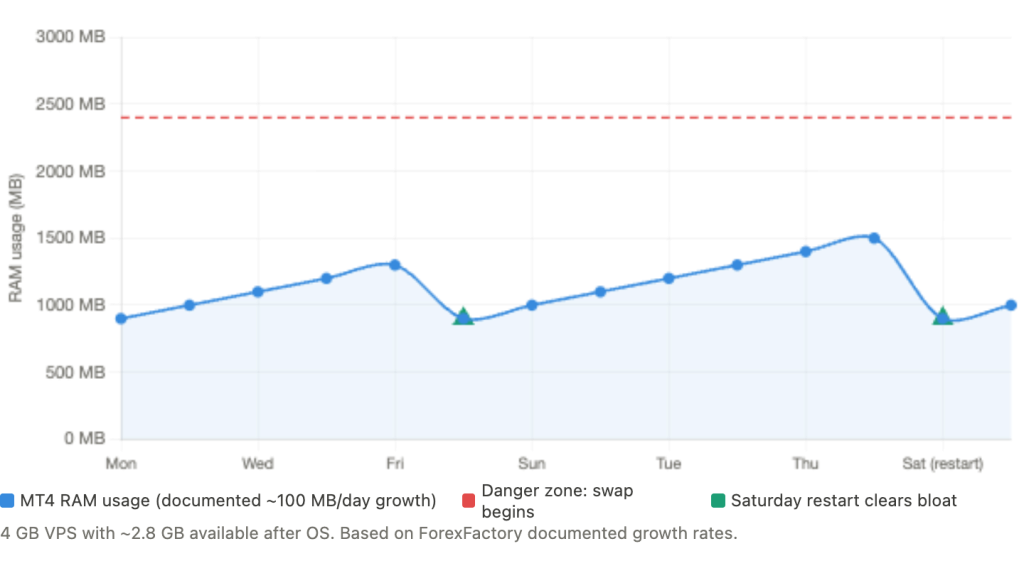
One ForexFactory user measured the growth directly: MT4 instances climbed from approximately 0.9 GB at fresh start to 1.7 GB after 24 hours of operation. That is roughly 100 MB of memory growth per day. A VPS hosting provider with extensive operational data across client terminals noted that “the true usage could only be ‘seen’ 12 to 24 hours after MT4 run” and considers the 12-hour mark the most critical monitoring point for memory stability.
The causes are specific and well understood.
Tick history accumulates continuously. Every incoming price tick is stored in memory. Lower timeframes (M1, M5) accumulate fastest because they generate the most ticks per unit of time. A scanner monitoring 20+ pairs on M1 is ingesting tick data at a rate that compounds meaningfully over days.
Journal and expert log files grow without bound. Forum reports describe log files that can “fill 1 TB in no time” in extreme cases. On a VPS with limited storage, this can exhaust disk space before RAM becomes the problem.
MT5 cached timeseries persist in memory for up to 30 minutes after last access according to platform documentation. Under scanning loads, where the EA continuously requests data across symbols and timeframes, these caches are refreshed before they expire. They effectively become permanent residents in RAM for the duration of the session.
Chart objects accumulate if the scanner draws visual markers. Pattern recognition EAs that draw trendlines, rectangles, or labels on detected formations create chart objects on every detection cycle. Without programmatic cleanup, these objects pile up across days of operation and consume increasing memory.
Poorly coded EAs compound everything. Unbounded array growth in OnTick(), excessive object creation without deletion, and unclosed file handles are common in free or community-sourced pattern scanners. If your memory growth exceeds the 100 MB per day baseline, the EA code itself is likely contributing.
What Happens When a VPS Runs Out of RAM
The failure progression is predictable. Windows first terminates lightweight non-essential services. At roughly 90 to 95% memory utilization, it begins killing processes, which may include your MetaTrader terminal. If a pagefile exists, MetaTrader does not crash immediately but becomes extremely sluggish. Even on NVMe storage, swap is roughly 100x slower than RAM. An EA that normally executes in 1ms suddenly takes 50 to 100ms. Beyond swap tolerance, Windows triggers a system freeze. All programs enter a hung state, file corruption becomes possible, and the only remedy is a hard restart. Your scanner is offline until you notice and intervene.
Scheduled Restarts Prevent the Problem
The solution is unglamorous but effective. Weekly MetaTrader restarts during the weekend market close clear accumulated memory bloat before it reaches dangerous levels. A simple batch script handles it:
taskkill /f /im “terminal.exe”
timeout /t 7
start “” “C:\Trading\MT4\terminal.exe” /portable
Schedule this via Windows Task Scheduler for Saturday afternoon. On the same schedule, delete old log files from the MetaTrader logs directories. MetaTrader remembers EA attachments and chart configurations if the terminal closes through this method, so your scanner setup survives the restart intact.
If your scanning workload is particularly heavy (30+ charts, multiple terminals, M1 timeframes), a mid-week restart during the Sunday evening session gap provides additional safety margin.
Deploying Scanner EAs on a VPS
A correctly sized VPS with the wrong deployment configuration will still lose trades. Portable mode, auto-start behavior, and alert routing each have specific failure modes that only surface after a reboot or network interruption, which is exactly when reliability matters most.
Portable Mode
The /portable command-line switch is non-negotiable for VPS deployments. Without it, MetaTrader stores configuration data, chart templates, EA settings, and login credentials in a user-profile-dependent path under %APPDATA%\MetaQuotes\Terminal<hash>. The problem surfaces after a reboot. If MetaTrader auto-starts under a different Windows account context, which is common with Autologon or Task Scheduler triggers, the terminal cannot find the correct data folder. It launches as if freshly installed: no saved login, no charts, no attached EAs. Your scanner is gone and the terminal sits at a login prompt until you notice via RDP.
Portable mode stores everything in the installation directory itself. One folder contains the entire terminal state. The shortcut format is straightforward:
“C:\Trading\MT5_BrokerX\terminal64.exe” /portable
This also makes backups trivial. Copy the folder, and you have a complete snapshot of your entire configuration. If something breaks, restoring means replacing one directory.
Auto-Start After Reboot
A VPS that reboots (planned maintenance, Windows Update, crash recovery) must bring MetaTrader back online without manual intervention. The recommended approach combines two components.
First, configure Microsoft’s Autologon utility (available from Sysinternals) with the VPS administrator credentials. This ensures Windows logs into the desktop session automatically after any restart. Second, place your MetaTrader shortcuts (with /portable) in the Windows Startup folder (shell:startup). When the desktop session loads, MetaTrader launches automatically.
A 120-second delay in the startup batch script is worth adding. Windows services and network connectivity need time to fully initialize after a reboot. Launching MetaTrader immediately can cause connection failures or incomplete data loading.
timeout /t 120
start “” “C:\Trading\MT5_BrokerX\terminal64.exe” /portable
The alternative approach, using Task Scheduler with an ONSTART trigger, causes known issues. MetaTrader running under the SYSTEM account often fails to load user profiles correctly, resulting in the same fresh-install behavior that portable mode is meant to prevent. Autologon plus Startup folder is the more reliable path.
Alert Delivery from a VPS
A pattern scanner running on a VPS is only useful if it can notify you when it detects a formation. Three delivery channels work from a VPS environment, each with specific limitations.
Email alerts use MetaTrader’s built-in SMTP client, configured in Tools > Options > Email. The limitation: MT4 has restricted SSL support, and Gmail frequently blocks login attempts from VPS IP addresses flagged as data center traffic. GMX is widely recommended among traders as the most reliable free email provider for MT4 SMTP relay.
Push notifications route through the MetaQuotes ID system using MetaQuotes’ own servers via the existing trading connection. No firewall configuration or SMTP setup is required. This is the most reliable alert channel from a VPS because it uses infrastructure that is already established for the trading connection itself.
Telegram alerts use the WebRequest() function to call the Telegram Bot API. This requires two configuration steps: the URL https://api.telegram.org must be whitelisted in Tools > Options > Expert Advisors, and outbound HTTPS on port 443 must be allowed through Windows Firewall. Telegram delivery is fast and flexible but depends on correct URL whitelisting, which resets if the EA configuration is lost.
Optimization Checklist
These settings directly reduce MetaTrader’s resource footprint for scanning workloads. Apply them before evaluating whether your VPS plan needs upgrading.
Max bars in chart: reduce from the default 512,000 to 5,000 to 10,000 in Tools > Options > Charts. As covered earlier, this single change can reduce RAM consumption from over 1 GB to under 50 MB across 20+ charts.
Market Watch cleanup: right-click Market Watch, select “Hide All,” then add back only the symbols your scanner monitors. Each visible symbol processes live tick data. Removing unused symbols reduces CPU usage by 20 to 40% in documented cases.
Disable unused MT5 features: uncheck “Enable News” in Server options. Disable sound events, DDE server, and clear unused alerts. Each alert evaluates on every tick regardless of whether it has triggered.
Chart rendering: uncheck Show trade levels, OHLC, Ask line, period separators, and grid on charts that only run EAs. These visual elements consume rendering cycles that serve no purpose when nobody is watching the chart.
Windows Defender exclusions: add your MetaTrader installation folders to real-time scanning exclusions. Defender scans every file operation including tick logging and EA execution. On a busy scanner, this overhead is measurable.
Power plan: set to “High Performance” in Windows power settings. The default “Balanced” plan throttles CPU clock speed during perceived idle periods, which MetaTrader’s intermittent scan cycles can trigger. Set screen timeout and sleep to “Never.”
Disable unnecessary Windows services: Print Spooler, Windows Search/Indexing, and Superfetch/SysMain serve no purpose on a trading VPS and consume resources.
Why Pattern Scanners Need Uptime, Not Latency
Most forex VPS marketing emphasizes latency: sub-millisecond execution, colocation in Equinix NY4 or LD4, proximity to broker matching engines. For scalping bots and high-frequency execution strategies, that emphasis is justified. For pattern scanning, it is almost entirely irrelevant.
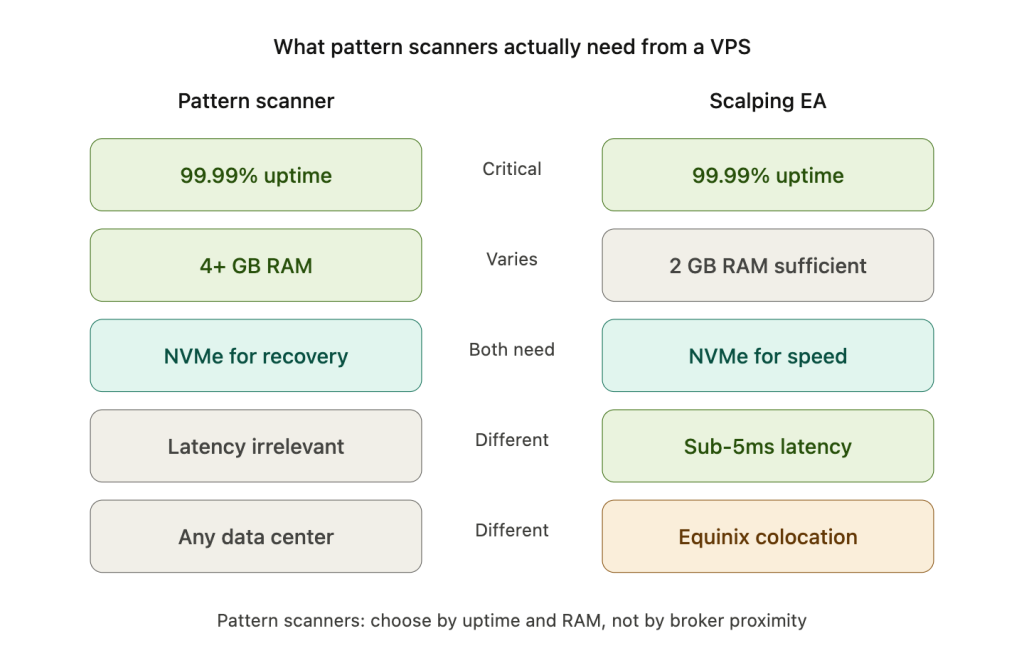
A head and shoulders pattern on the daily timeframe takes days to weeks to complete. The right shoulder might form entirely during sessions when you are asleep. A consolidation triangle on H4 might begin during the London session, narrow through the low-volatility Asian hours, and break out at the next London open. Whether your scanner detects that breakout with 5ms or 200ms of network latency has no measurable impact on fill quality for a pattern-based entry. The formation developed over hours or days. The entry signal is not sensitive to single-digit millisecond differences.
What does matter is being online when the breakout happens. A VPS with 99.99% uptime translates to approximately 52 minutes of downtime per year. A home PC running a scanner is vulnerable to power outages, ISP interruptions, router resets, and Windows Update restarts that can each take your scanner offline for minutes to hours. The difference is not execution speed. It is whether your scanner was running at all when the pattern completed.
This reframes the infrastructure decision. Pattern scanner traders do not need premium latency-optimized colocation. They need reliable, properly sized hosting with strong uptime guarantees and a configuration that survives reboots without manual intervention. A VPS in Frankfurt and a VPS in New York will both detect an H4 triangle breakout identically. Server location for this workload can be chosen based on your own timezone (for RDP convenience when you need to check the terminal) or cost. Paying a premium for proximity to your broker’s matching engine adds no value for pattern detection.
Clock Synchronization: What Matters and What Does Not
Traders sometimes worry about clock accuracy on their VPS affecting candle timing and pattern detection. In practice, this concern is misplaced.
MetaTrader uses server time for candle boundaries, not the local system clock. The TimeCurrent() function returns the last known server time, defined as the time of the last quote receipt. This value is formed on the broker’s trade server and does not depend on time settings on your VPS. Even if your VPS clock drifts by several minutes, candle open and close timing is unaffected because it is determined server-side.
Where VPS clock accuracy does matter: log timestamps (important for debugging scanner behavior), Kerberos authentication (which fails with more than 5 minutes of clock skew, potentially disrupting RDP access), and any EA logic that compares local time to server time for session filtering. Standard NTP synchronization, which is enabled by default on most VPS configurations, handles all three cases adequately.
The pattern detection itself, the core function of your scanner EA, is entirely independent of local clock accuracy.
FAQ
How much RAM does a pattern scanner EA need on a VPS?
It depends on the number of symbols, timeframes, and the max bars setting. As a baseline, plan for 800 MB to 1.2 GB for Windows Server, 150 to 500 MB for the MetaTrader platform depending on version and features enabled, and roughly 100 MB per chart on higher timeframes. A 4 GB VPS handles most single-terminal scanning setups with adequate headroom for memory growth over the trading week.
Can I run multiple pattern scanner EAs on one VPS?
Yes, but each additional terminal adds its own platform overhead and chart memory consumption. On an 8 GB VPS, 4 to 6 MT5 terminals or 6 to 10 MT4 terminals each running 20+ optimized charts is realistic. Running multiple scanners on a 2 GB plan will cause memory exhaustion within hours. Monitor RAM usage at the 12 to 24 hour mark, not at startup, because memory growth is cumulative.
Does MT4 or MT5 use more resources for pattern scanning?
MT5 uses substantially more RAM than MT4 for identical configurations due to its 64-bit architecture and M1-based data construction model. In direct testing, MT5 consumed 110 to 135 MB versus 20 to 35 MB for MT4 with the same broker, charts, and 2,000 max bars. However, MT5 provides genuine multi-threaded EA execution, meaning scanner EAs on separate charts can distribute across CPU cores. MT4 does not offer this. The tradeoff is higher memory cost for better CPU utilization.
Do I need a VPS close to my broker for pattern scanning?
No. Pattern scanning is not latency-sensitive. Formations develop over hours to days. Whether the breakout is detected with 5ms or 200ms of network latency makes no meaningful difference to entry quality. Choose VPS location based on your timezone for RDP convenience or on cost. The premium pricing of broker-colocated servers adds no value for this workload.
How often should I restart MetaTrader on a VPS?
Weekly restarts during the weekend market close are the standard recommendation. MetaTrader terminals exhibit documented memory growth of roughly 100 MB per day during continuous operation. A Saturday afternoon restart via Task Scheduler clears accumulated bloat and prevents the gradual degradation that leads to crashes mid-week. If your setup is particularly heavy (30+ charts, M1 timeframes, multiple terminals), a mid-week restart during the Sunday evening session gap adds an extra safety margin.
Can pattern scanner EAs run on a Linux VPS?
MetaTrader is a Windows application. Running it on Linux requires Wine or a similar compatibility layer. While this is technically possible, pattern scanner EAs are among the most resource-intensive MetaTrader workloads. The added overhead and potential instability of a compatibility layer introduces risk in exactly the scenario where reliability matters most. Wine-based setups also complicate auto-start configuration, portable mode behavior, and Windows Defender exclusion equivalents. For scanning workloads that need to run unattended 24/5, a Windows VPS is the more reliable deployment path.
References
- Fedoseev, D. “Flag Pattern” and “Analyzing Chart Patterns” series. MQL5.com Articles. Referenced for pattern classification methodology (ZigZag-based vs bar-filling categories) and detection pipeline architecture.
- MQL5.com Documentation. CopyRates(), TimeCurrent(), iCustom() function references. Terminal threading model documentation. Data caching behavior and memory management for MT4 and MT5 platforms.
- MQL5.com Forum. Threading model experimental test results (indicator and EA core utilization). User-reported memory consumption measurements including 500-symbol (~1 GB) and 900-symbol (47 GB) data caching scenarios. MT5 vs MT4 memory comparison testing (110-135 MB vs 20-35 MB at 2,000 max bars). Developer reports on cached timeseries persistence behavior.
- Fatkhullin, R. (MetaQuotes CEO). Statement on MetaTrader storage requirements: “SSD is required, NVMe is better.” Referenced via MQL5.com forum.
- ForexFactory Forum. User-documented RAM measurements: MT4 memory growth from 0.9 GB to 1.7 GB over 24 hours of continuous operation. Max bars reduction impact: over 1 GB to approximately 20 MB across 23 M1 pairs after reducing from 500,000 to 5,000 bars.
- VPS provider operational documentation. Terminal memory behavior at 12 to 24 hour runtime marks. Scheduled restart recommendations. Auto-start configuration best practices (Autologon, portable mode, Task Scheduler limitations). Market Watch cleanup CPU impact (20 to 40% reduction documented). Windows optimization settings for trading VPS environments.
- Microsoft Sysinternals. Autologon utility documentation. Referenced for VPS auto-login configuration after reboot.
- MetaTrader 4 and MetaTrader 5 platform documentation. SMTP email configuration, MetaQuotes ID push notification system, WebRequest() function for Telegram Bot API integration. Chart profile save and restore behavior. Portable mode data storage paths.
Editorial Note
This article covers VPS infrastructure sizing, configuration, and deployment for running chart pattern recognition EAs. It does not constitute financial advice, trading strategy recommendations, or endorsement of any specific EA or trading approach.
Resource consumption figures referenced throughout are based on documented configurations from MQL5.com, MetaTrader platform documentation, community testing data, and VPS operational environments. Actual consumption will vary based on broker data feeds, EA complexity, number of symbols and timeframes monitored, indicator buffer counts, and MetaTrader platform version. Figures should be treated as reference ranges for sizing decisions, not guaranteed specifications.
Pattern scanner EAs monitor price formations. Whether and how to trade detected patterns is entirely the responsibility of the trader. A VPS can provide the uptime and resource capacity for continuous automated scanning. It cannot influence market conditions, broker execution quality, or the reliability of any pattern-based trading strategy.