Trailing stops run client-side only. The official MetaTrader 4 documentation states it plainly: “Trailing Stop is always attached to an open position and works in client terminal, not at the server like Stop Loss.” When MetaTrader closes, loses its internet connection, or your PC goes to sleep at 3am, trailing stops freeze at their last position. The EA stops processing ticks. Open positions sit on the broker’s server with whatever stop loss was last set, unmanaged, while the market continues to move.
This single technical fact makes a VPS non-optional for any EA that manages positions with client-side logic. Not just trailing stops. Grid level adjustments, dynamic stop management, partial close logic, basket hedging, session-based exit rules. All of it runs inside MetaTrader, and all of it stops the moment the terminal goes offline.
This article is not about how Expert Advisors work or which trading strategies to automate. It is the infrastructure guide: why home PCs introduce at least seven independent failure modes that compound against you, how to size a VPS for workloads ranging from a single EA to a multi-terminal portfolio, how to configure auto-restart that survives reboots without manual intervention, how to monitor for the silent failures that cost money, how to match latency investment to your actual strategy requirements, and how to run the cost-benefit math.
Resource figures and failure mode data are drawn from MetaQuotes documentation, MQL5 forum developer reports, U.S. Energy Information Administration power outage statistics, Ofcom broadband performance data, Forex VPS provider operational specs, and documented trader incidents. Where a claim comes from a single source or a commercially interested party, it is flagged.
Why Home PCs Fail Automated Trading
The forex market runs 24 hours a day, five days a week. An EA needs its host machine to survive 120 continuous hours per week without interruption. Home PCs face at least seven independent failure modes, each capable of causing losses on its own, and they compound in practice.
Power outages are the most quantifiable risk. U.S. electricity customers averaged 1.4 to 1.5 power interruptions per year with 5.6 hours of total downtime in 2022, according to the U.S. Energy Information Administration. In hurricane-affected years, the average pushed to nearly 9 hours. These are national averages. Louisiana residents experienced over 80 hours of interruptions in 2021, while even Washington, D.C., the best-performing region, saw 52 minutes. A consumer UPS provides 10 to 30 minutes of battery backup, enough to cover brief flickers but useless during extended outages. And a UPS does nothing if the ISP’s equipment also loses power, which it typically does during the same event.
Internet disconnections are more frequent than most traders assume. Ofcom’s UK broadband performance report found that 19% of ADSL2+ lines experienced more than two disconnections per day lasting 30 seconds or longer. A Vorboss study found 51% of fixed business connectivity customers experienced a broadband outage within a 12-month period, with micro businesses averaging 15.8 hours of downtime. Residential ISPs in the U.S. provide no contractual uptime guarantees whatsoever. Business-grade connections may guarantee 99.9%, but residential contracts offer nothing.
Windows Update forced restarts are a particularly insidious failure mode because they happen silently during overnight hours when forex markets are active but the trader is asleep. Microsoft’s own support forums document users reporting restarts occurring despite attempts to disable automatic updates. MetaTrader’s own auto-update system compounds this: MT4 build 1010 broke all indicators and EAs for affected users, and the official MT5 documentation states that the auto-update system “cannot be disabled.” The /skipupdate command-line flag works for MT4 but is undocumented and unsupported.
Sleep mode, screen savers, and power management settings halt EA execution entirely even when the trader believes they have been disabled. MetaTrader constantly writes price data to disk and processes incoming ticks. Sleep mode stops all of this. Multiple forum reports document EAs being disabled overnight despite users configuring sleep to “never.” Network adapters set to “allow the computer to turn off this device to save power” can silently disconnect WiFi during low-activity periods, a default Windows setting that most traders never check.
Shared household bandwidth, family members closing laptops or unplugging network equipment, and scheduled router firmware updates add further failure vectors that a trader living alone might avoid but that most cannot reliably control.
The documented consequences are not theoretical. One MQL5 blog author reported their MetaTrader 5 platform disconnecting from the broker “for one day long,” causing an open position to hit its emergency 10-ATR stop loss. An MQL5 forum veteran reported a live MT4 terminal disconnecting between 3am and 4am, causing a missed trade at 4:10am that was discovered hours later. Another user’s MetaTrader disconnected and failed to reconnect automatically, remaining offline until manual intervention the following day.
Combining realistic estimates of home PC reliability (95 to 98%) with residential internet reliability (95 to 99%), the compounded availability drops to roughly 90 to 97%. That translates to anywhere from 263 to 876 hours of potential downtime per year. A VPS with 99.99% uptime permits a maximum of 52 minutes annually. The difference is not incremental. It is structural.
The Server-Side vs Client-Side Distinction Every EA Trader Must Know
The infrastructure decision for EA trading hinges on one architectural split: what executes on the broker’s server and what executes inside your MetaTrader terminal.
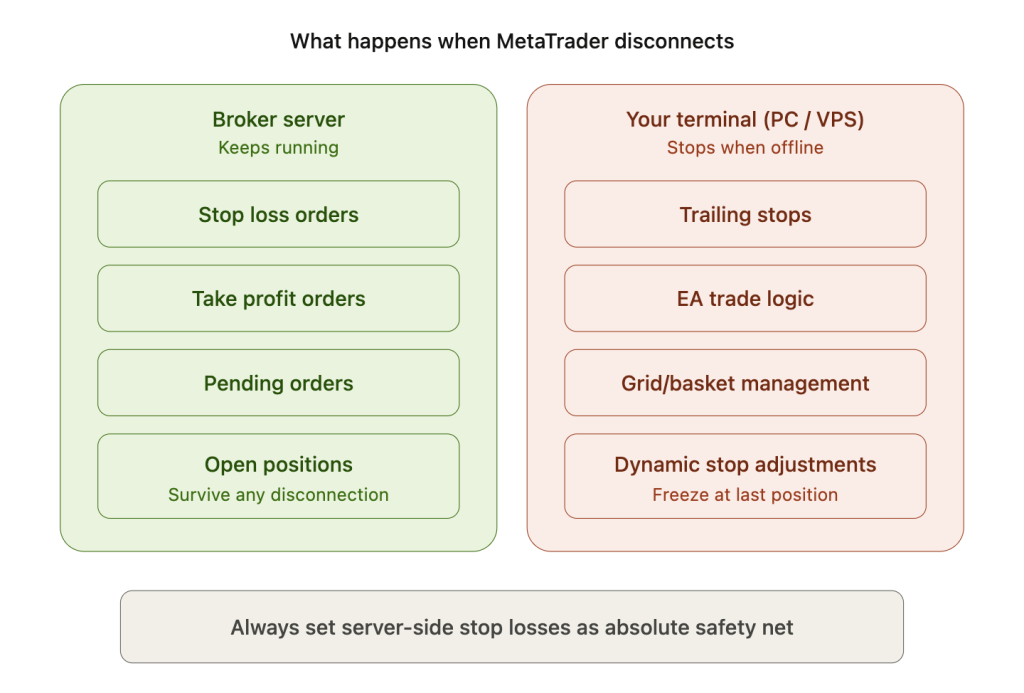
Stop losses, take profits, and pending orders (buy stops, sell stops, buy limits, sell limits) are server-side. Once placed, they live on the broker’s trade server. If your PC catches fire, your VPS reboots, or your internet drops for six hours, these orders continue executing normally. The broker’s matching engine does not need your terminal to be connected in order to fill a stop loss.
Trailing stops and all EA logic are client-side. They run exclusively inside the MetaTrader terminal on your machine. When MetaTrader closes or loses its connection to the broker, trailing stops freeze at their last position. The EA stops receiving ticks. Grid level calculations stop. Dynamic stop adjustments stop. Partial close logic stops. Every function that makes your EA an active position manager rather than a passive set-and-forget order ceases operating.
The danger is not that something breaks visibly. It is that nothing happens while the market continues to move. MetaTrader’s OnTick() event handler fires only when new price data arrives from the broker. During a disconnection, no ticks arrive, so OnTick() never executes. The EA does not crash, throw an error, or produce a warning. It simply sits idle. Open positions remain on the broker’s server with whatever stop loss was last registered, but the EA cannot adjust stops, close partial positions, manage grid levels, or execute any logic until the connection is restored and ticks resume.
MetaTrader’s reconnection behavior is not guaranteed to be fast or successful. Typical successful reconnections take about one minute according to veteran MQL5 forum contributor WHRoeder, but multiple users report failures that lasted hours. One experienced MQL5 developer tested 15 brokers and found “at least 10 of them have had some sort of connection issue during the last two or three weeks.” The platform attempts up to 20 connection retries, but can sometimes attempt to reconnect with wrong account credentials, causing permanent failure until manual intervention.
There is no built-in OnDisconnect event in MQL4 or MQL5. The IsConnected() function is useless inside OnTick() because that handler only fires when the terminal is already receiving data. Detecting disconnection programmatically requires using OnTimer() with polling intervals, and even then, the network timeout takes approximately 30 seconds to detect a local disconnection (such as WiFi dropping) and over one minute for upstream ISP failures. By the time the EA detects the problem, the market has already moved.
The practical implication is a rule that should be non-negotiable for every EA running on any infrastructure, VPS or otherwise: always set server-side stop losses as an absolute safety net. Never rely solely on trailing stops or EA-managed exits without a hard stop loss registered on the broker’s server. If the EA normally tightens stops as a trade moves into profit, the server-side stop loss should sit at the maximum acceptable loss level. If the connection drops and the EA cannot tighten further, the server-side stop loss catches the worst case.
This is not just a home PC problem. VPS connections can also drop, though far less frequently. The difference is that a properly configured VPS reconnects in seconds with 99.99% annual uptime, while a home PC faces the seven compounding failure modes described in the previous section. But no infrastructure is perfect, and the server-side stop loss is the one protection that works regardless of what happens to your terminal.
VPS Uptime vs Home Reliability in Real Numbers
Most specialized forex VPS providers guarantee 99.99% uptime, which translates to a maximum of 52.6 minutes of downtime per year or 4.38 minutes per month. FXVM, ForexVPS.net, TradingFXVPS, FXVPS.biz, and MetaQuotes’ own built-in VPS all advertise this figure. MassiveGRID claims 100% uptime using Proxmox HA clustering with automatic failover and Ceph distributed storage with 3x data replication. QuantVPS claims 99.999%, allowing approximately 26 seconds of downtime per month. AccuWebHosting is a notable outlier at 99.9%, which permits 8.76 hours of annual downtime, roughly 10x more than the 99.99% providers.
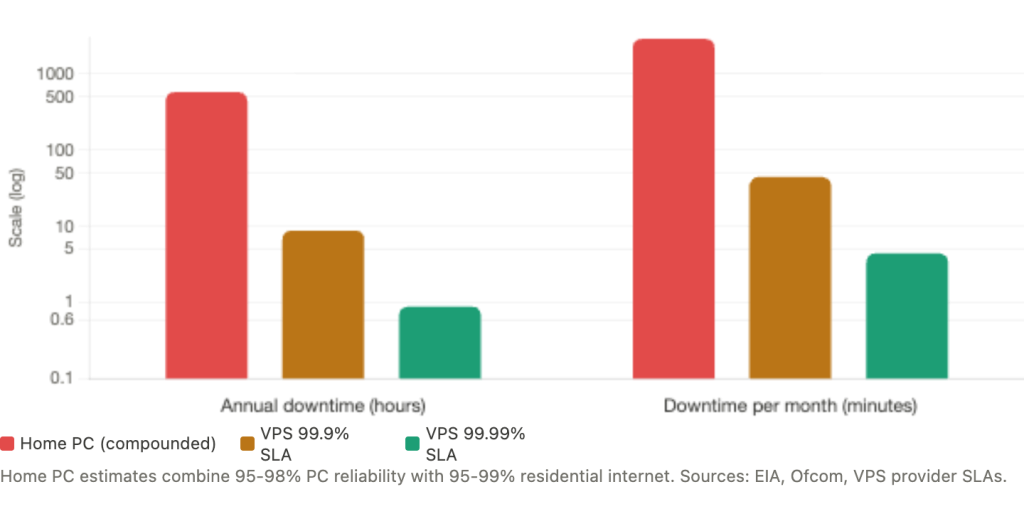
The practical difference between these tiers is dramatic. A 99.9% SLA permits 43.83 minutes of downtime per month. A 99.99% SLA permits 4.38 minutes. For an EA managing open grid positions with trailing stops during a volatile FOMC announcement, even 43 minutes of unplanned downtime could produce losses exceeding a full year of VPS hosting costs.
Data centers achieve these uptime figures through redundancy at every layer that a home setup cannot replicate. Tier III facilities, where most forex VPS providers operate, feature N+1 redundancy on all critical components: dual power feeds through separate distribution paths, diesel generators that start within 10 seconds of utility failure, UPS systems bridging the gap, N+1 cooling, and multiple Tier-1 ISP connections with BGP routing for automatic network failover. A home setup has a single power feed, a single ISP, a single router, and a single point of failure at every layer.
Most forex VPS providers operate within Equinix data centers: LD4 and LD5 in London (the highest global concentration of forex broker matching engines), NY4 and NY5 near New York, TY3 in Tokyo, and SG1 in Singapore. These are Tier III+ certified facilities. They are the same data centers where major forex brokers house their trading servers, which provides both the reliability advantage and a latency advantage that the article covers in a later section.
The comparison in aggregate: a home PC with residential internet delivers roughly 90 to 97% compounded availability, translating to 263 to 876 hours of potential downtime per year. A 99.99% VPS permits 52 minutes. That is not a marginal improvement. It is three to four orders of magnitude less downtime.
Resource Sizing: From a Single EA to a Multi-Terminal Portfolio
MetaTrader’s resource consumption scales predictably, and understanding the baseline numbers prevents both over-provisioning (wasting money on a plan you do not need) and under-provisioning (degraded execution during the moments it matters most).
Platform baselines
MT4 consumes approximately 150 to 200 MB of RAM idle with no charts open. Each open chart with indicators adds 30 to 50 MB. A typical setup with 6 to 10 charts and 1 to 2 EAs consumes 400 to 600 MB total. MT5 runs heavier: 250 to 350 MB idle, 40 to 70 MB per chart with indicators, and 600 MB to 1 GB for a comparable configuration. These differences trace to the architectural distinctions covered in our MT4 vs MT5 VPS comparison.
Windows Server itself consumes 800 MB to 1.2 GB of RAM regardless of what you run on top of it. This is a fixed overhead that shrinks your available memory before MetaTrader even launches. On a 2 GB VPS, Windows leaves 800 MB to 1.2 GB for everything else. On a 4 GB VPS, you have roughly 2.8 to 3.2 GB to work with.
The max bars setting dominates memory consumption
At the default of 512,000 bars, ten charts can consume 500 MB to 1 GB for history data alone. Reducing this to 10,000 bars, which is sufficient for any EA using up to a 200-period moving average on any timeframe, drops total history data consumption to roughly 50 to 100 MB across all charts. For pure execution bots that only need recent price data, setting this as low as 1,000 bars is viable.
Chart timeframe compounds the effect. M1 charts consume roughly 300 MB each due to the volume of stored tick history. H1 and H4 charts consume approximately 100 MB each. EAs operating on higher timeframes are inherently lighter on VPS resources, an infrastructure consideration that rarely appears in strategy selection discussions but directly affects hosting costs.
Sizing by strategy type
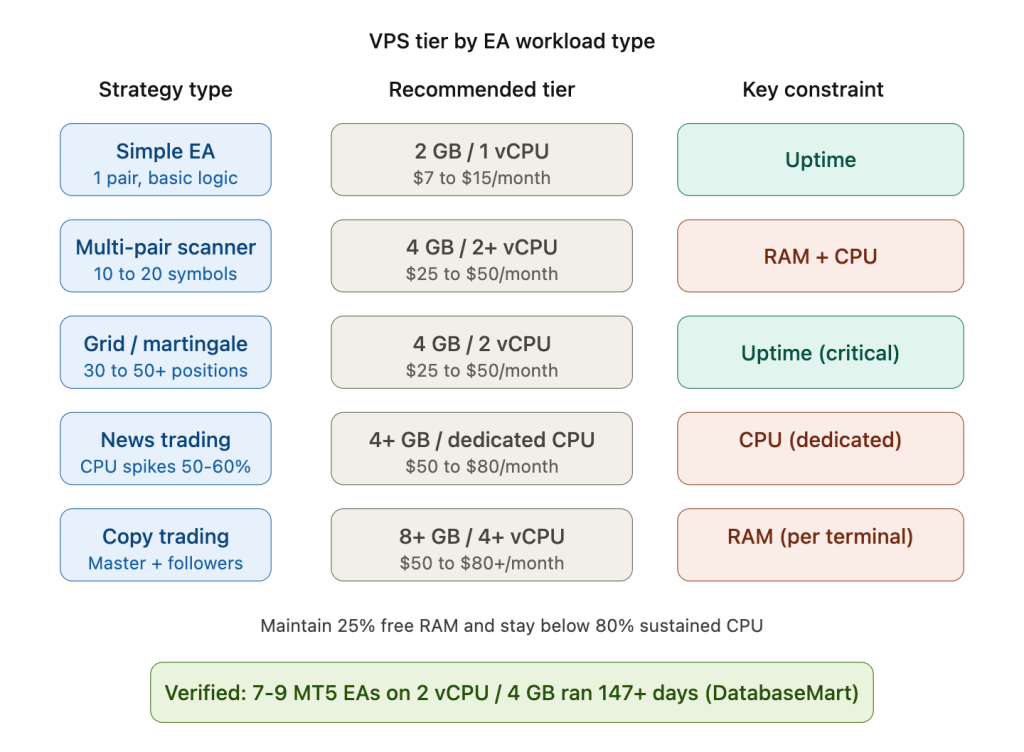
Different EA architectures create different resource profiles. Simple execution bots running a single pair on one timeframe with basic logic (moving average crossover, breakout detection, price action rules) need minimal resources. A 1 vCPU plan with 1 to 1.5 GB RAM handles this comfortably.
Multi-pair scanning EAs that monitor 10 to 20 symbols need more. Each Market Watch symbol generates continuous tick data requiring CPU processing. Plan for 2+ vCPU and 2 to 4 GB RAM when running scanners across many symbols simultaneously.
Grid and martingale bots are not inherently CPU-intensive per order, but during adverse moves they accumulate 30 to 50+ open positions, increasing memory consumption for order management. The critical concern for grid bots is uptime, not raw speed. A grid EA that goes offline during a deep drawdown cannot add recovery positions or adjust levels, turning a managed drawdown into an unmanaged one.
News trading bots face CPU spikes of 50 to 60% or higher during major releases when tick volume jumps 5 to 10x above normal. These bots benefit from dedicated (not shared) CPU cores to avoid contention during high-activity periods when every EA on a shared physical host activates simultaneously.
Copy trading setups running multiple terminals (master plus follower accounts) require proportionally more resources. Each additional MT4 instance adds 200 to 500 MB of base memory. For 1 to 3 accounts, 2 vCPU and 4 GB RAM is the minimum. Larger operations with 20+ followers need 4+ cores and 8+ GB.
A verified real-world benchmark
DatabaseMart published data from a production deployment running 7 to 9 MT5 EA instances concurrently on a VPS with 2 vCPU and 4 GB RAM. The setup averaged 7 to 15% CPU usage with peaks around 50 to 60% during high-volatility periods. Memory consumption sat at 45 to 60% of the 4 GB allocation. The system ran continuously for 147+ days without crashes. This is one of the few independently documented long-running VPS benchmarks and provides a useful reference point for what a mid-tier plan actually handles in production.
VPS tier capacity
The following estimates aggregate provider documentation and forum reports, assuming optimized configurations (reduced max bars, cleaned Market Watch, unnecessary features disabled).
A 2 GB VPS supports 1 to 2 light MT4 instances or 1 light MT5 instance. This tier works for a single EA running a simple strategy on a focused watchlist. It does not provide headroom for memory growth over a trading week.
A 4 GB VPS supports 2 to 4 moderate MT4 instances or 1 to 3 moderate MT5 instances. This is the most common tier for solo traders running multi-pair or multi-broker setups. The DatabaseMart benchmark confirms this tier handles 7 to 9 MT5 EAs when configured efficiently.
An 8 GB VPS supports 4 to 8 moderate MT4 instances or 3 to 6 moderate MT5 instances. This tier accommodates portfolio EA operations, copy trading with multiple followers, or running separate terminals for different strategy types.
A 16 GB VPS supports 8 to 15 MT4 instances or 6 to 10+ MT5 instances. This is professional multi-strategy territory.
The conservative operating rule: maintain at least 25% free RAM at all times and do not exceed sustained 80% CPU utilization. When RAM runs low, Windows pages to disk. Even on NVMe SSDs, swap is roughly 100x slower than RAM. An EA that normally executes in 1ms suddenly takes 50 to 100ms when the system is swapping, and during volatile markets this degradation compounds with every tick.
Auto-Restart Configuration That Survives a Reboot
The most common failure after a VPS reboot is MetaTrader sitting at the Windows login screen because auto-login was not configured. The second most common is MetaTrader launching as a fresh installation with no charts, no EAs, and no account login because portable mode was not enabled. Both failures leave positions unmanaged until the trader manually connects via RDP and discovers the problem, which can be hours later.
The reliable approach combines three components that must all be in place.
Step 1: Autologon
Download Autologon from Microsoft Sysinternals. Enter the VPS administrator username and password, click Enable. This stores credentials as an LSA (Local Security Authority) secret, which is encrypted in the registry rather than stored as plaintext. Microsoft acknowledges that administrators can retrieve and decrypt LSA secrets, but this is the accepted method across every forex VPS provider surveyed. The alternative approach of directly editing the Winlogon registry key stores the password in plaintext and should be avoided.
Autologon ensures Windows automatically logs into a desktop session after any reboot. This matters because items in the Startup folder only execute after a user logs in. Without Autologon, a VPS reboot during a weekend maintenance window leaves MetaTrader offline until Monday morning when you connect via RDP.
Step 2: Portable mode
Install MetaTrader in a non-Program Files location (such as C:\Trading\MT4_BrokerName) and always launch with the /portable flag. Without it, MetaTrader stores data in %AppData%\Roaming\MetaQuotes\Terminal[hash], and after auto-login the user profile context can differ from the RDP session context. The terminal launches as though freshly installed: no saved login credentials, no chart profiles, no attached EAs. With /portable, all data lives in the installation directory. One folder contains the entire terminal state, and no path mismatch is possible regardless of how the Windows session was created.
Step 3: Startup batch script with delay
Windows services, networking, DNS resolution, and time synchronization need time to fully initialize after a reboot. Launching MetaTrader immediately can cause connection failures or incomplete data loading. A 60-second delay avoids this. Place the following batch file in the Windows Startup folder (accessible via shell:startup):
@echo off timeout /t 60 /nobreak start /HIGH “” “C:\Trading\MT4\terminal.exe” /portable /skipupdate timeout /t 10 start /HIGH “” “C:\Trading\MT5\terminal64.exe” /portable /skipupdate exit
The /skipupdate flag prevents MetaTrader from auto-updating during startup, avoiding situations where an update breaks EAs or indicators during live trading. The /HIGH flag gives MetaTrader elevated CPU priority. The 10-second gap between terminal launches prevents overwhelming the VPS at startup when multiple instances initialize simultaneously.
Why Task Scheduler is unreliable as the primary method
Task Scheduler with a “When the computer starts” trigger has been reported by multiple MQL5 forum users to fail silently for MetaTrader. The root cause is that this trigger runs the task in Session 0 under the SYSTEM account, which is a non-interactive session since Windows Vista. MetaTrader requires a desktop session with the user profile loaded. Without it, the terminal cannot access the correct data folder, display charts, or load EA configurations.
Task Scheduler works better as a secondary mechanism. For instance, running a PowerShell process-monitor script every five minutes that checks whether terminal.exe is running and restarts it if not provides an additional safety layer on top of the Startup folder approach.
What persists and what does not across restarts
EA persistence across restarts is generally reliable. MetaTrader saves chart profiles including attached EAs and their parameters when closing gracefully, and restores them on the next launch. However, a persistent bug reported in MT4 builds 1340 and later causes MetaTrader to occasionally remove EAs from charts after restart or profile change. Testing recovery behavior before going live with real money catches this before it costs anything.
The AutoTrading button state persists across restarts. If it was enabled (green) when MetaTrader last closed, it remains enabled on relaunch. But two settings under Tools, Options, Expert Advisors can silently disable it: “Disable automated trading when the account has been changed” and “Disable automated trading when the profile has been changed.” Both should be unchecked for VPS operation. If either is checked and the restart triggers a detected account or profile change, all EAs are silently disabled with no notification.
GlobalVariables, the terminal-level variables accessed via GlobalVariableSet() and GlobalVariableGet(), persist across restarts in a file called gvariables.dat. They expire after four weeks of non-use. The critical caveat: during a crash or power failure, unsaved GlobalVariable changes may be lost. EAs that track important state (position counts, grid levels, session flags) should call GlobalVariablesFlush() after every critical state change to force an immediate disk write rather than relying on MetaTrader’s periodic save.
Open positions always survive a MetaTrader restart because they live on the broker’s server. The concern is not losing positions. It is losing management of those positions during the period MetaTrader is offline. A grid EA that restarts after a 5-minute reboot finds all its open positions intact but must re-read state from GlobalVariables or file storage to resume managing them correctly. If that state was not persisted to disk before the shutdown, the EA may not know which grid levels have been filled or what the next action should be.
Monitoring: Detecting the Silent Failures That Cost Money
The most dangerous VPS failure is not a crash. It is a “ghost freeze” where MetaTrader’s process remains active and the UI appears responsive, but the EA thread has hung due to memory leaks, thread deadlocks, or socket timeouts. Windows Task Manager shows terminal.exe running. The status bar may show a connection. But the EA has stopped processing ticks and is not trading. Simple process monitoring that checks whether terminal.exe is running will not detect this.
The heartbeat file approach
The most widely recommended solution uses the EA itself to prove it is alive. The EA writes a timestamp to a file at regular intervals using OnTimer(). An external script checks the file’s age. If it exceeds a threshold, the script kills and restarts MetaTrader.
On the EA side, OnTimer() fires at a fixed interval (every 60 seconds is typical) and writes the current server time to a shared file in the Common Files directory. The file acts as a pulse. As long as it updates, the EA is processing events normally.
On the monitoring side, a PowerShell script scheduled via Task Scheduler every 1 to 5 minutes checks the age of the heartbeat file. If the last write time exceeds the threshold (5 minutes provides a reasonable buffer against brief pauses), the script runs taskkill to terminate MetaTrader, waits 10 seconds for cleanup, and relaunches the terminal with the /portable flag and startup delay. This is a blunt recovery mechanism, but it catches every category of silent failure: hung EA threads, frozen terminals, broken broker connections that OnTick() cannot detect, and memory exhaustion that makes the terminal unresponsive without technically crashing.
External monitoring services
Services like UptimeRobot (free tier available) and Cronitor (free tier available) accept HTTP heartbeat pings from inside the EA. The EA sends a periodic HTTP request via WebRequest() to a monitoring endpoint. If the ping stops arriving within the expected interval, the service alerts via email, SMS, or webhook. MQL5 Market offers dedicated utilities for this integration: “MT5 Monitoring Heartbeat” connects with Cronitor, and “Metatrader Uptime Monitoring MT5” uses UptimeRobot.
A critical limitation documented on ForexFactory applies to every external server-monitoring service: “Services like Uptime Robot will only let you know when your Windows server is offline. You will NOT get an alert if MT4 is shut down, if MT4 has lost the broker connection, or if your EAs are not turned on.” Server-level monitoring and EA-level heartbeats serve different purposes. You need both. Server monitoring catches VPS outages. EA heartbeats catch silent application failures.
Telegram alerts for real-time visibility
Telegram bot integration has become the most popular alerting mechanism among forex EA traders because it combines instant delivery with rich message formatting and zero cost.
The setup requires creating a bot via Telegram’s @BotFather, obtaining the API token and your personal chat ID, then adding https://api.telegram.org to MetaTrader’s allowed WebRequest URLs under Tools, Options, Expert Advisors. The MQL5 WebRequest() function sends POST requests to Telegram’s API with trade notifications, heartbeat confirmations, or error alerts. MQL5.com hosts a seven-part article series on building Telegram-integrated EAs, plus multiple open-source libraries in the CodeBase.
For VPS deployments, Telegram serves three monitoring functions simultaneously. Trade notifications confirm the EA is actively executing (every opened and closed trade sends a message). Heartbeat messages at regular intervals confirm the EA is running even during quiet market periods with no trades. Error alerts fire immediately when the EA detects a connection loss, an order failure, or a risk threshold breach. If Telegram messages stop arriving, something is wrong regardless of what the VPS dashboard shows.
What metrics matter on a trading VPS
Four measurements deserve active monitoring. CPU usage sustained above 80% degrades tick processing and order execution. RAM usage below 25% free triggers Windows swap behavior, turning millisecond EA execution into 50 to 100ms sluggishness. Disk space requires attention because log files can grow to 6 to 30+ GB if unmanaged. One MQL5 forum user reported a single log file reaching 20 GB, filling the C: drive and crashing Windows entirely, an avoidable catastrophe with a simple scheduled cleanup script. Network latency to the broker, visible in MetaTrader’s status bar, should remain stable. A sudden increase in displayed latency with no configuration change on your side suggests either a broker server issue or a network routing change worth investigating.
VPS Optimization Cuts Resource Waste by 20 to 40%
A default MetaTrader installation on a default Windows Server configuration wastes substantial resources on activity that provides zero value for EA execution. The optimizations below are ordered by impact, largest first.
Market Watch cleanup provides the single largest performance improvement. A typical broker offers 50 to 200+ symbols, all generating live tick data that MetaTrader processes on every update. An EA trading EUR/USD and GBP/USD does not need tick processing for 198 other symbols. Right-click Market Watch, select “Hide All,” then add back only the symbols your EAs actually trade or monitor. This eliminates hundreds to thousands of unnecessary ticks per second and reduces CPU usage by 20 to 40% according to documented FXVPS optimization testing. Symbols with open positions or active charts cannot be hidden, so this operation is safe to perform while trades are running.
Reducing chart history is the second-largest win. Change “Max bars in chart” and “Max bars in history” from the default 512,000 to 5,000 to 10,000 under Tools, Options, Charts. Most EAs look back at most a few hundred bars. A scalping bot on M5 using a 20-period moving average needs 20 bars of history. Even a swing strategy using a 200-period moving average on H4 needs only 200 bars. Setting max bars to 10,000 provides generous headroom for any reasonable EA lookback while reducing RAM consumption from over 1 GB to under 100 MB across ten charts.
Windows services running on a trading VPS that serve no purpose should be disabled via services.msc. Print Spooler manages printers that do not exist on a VPS. Windows Search continuously indexes files, consuming CPU and disk I/O for a search capability nobody uses on a headless trading server. SysMain (formerly Superfetch) preloads applications into RAM, which is redundant on a server running only MetaTrader. Disabling all three frees CPU cycles and RAM for tick processing during the moments it matters most.
Windows Defender exclusions should be configured for MetaTrader’s installation and data folders rather than disabling Defender entirely. Add folder exclusions for the terminal’s data directory and process exclusions for terminal.exe or terminal64.exe. MetaTrader’s continuous file I/O during tick logging, history updates, and EA execution triggers real-time scanning overhead. On a busy terminal, this overhead is measurable. But disabling Defender entirely exposes the VPS to malware that would cause worse performance problems than the scanning overhead it eliminates.
The High Performance power plan is mandatory. The default Balanced plan dynamically throttles CPU frequency during perceived idle periods, introducing micro-delays when the processor ramps up during sudden load. An EA sits idle between ticks, which Balanced mode interprets as low activity and reduces clock speed. When the next tick arrives, the CPU must ramp back up before processing, adding latency to every tick cycle. On a VPS where electricity costs are irrelevant to you, High Performance keeps the CPU at full speed with zero ramping delay. Set this via Control Panel, Power Options.
Additional optimizations that collectively contribute to headroom: set Visual Effects to “Adjust for best performance” under System Properties, Advanced, Performance. Disable MetaTrader news under Tools, Options, Server. Disable sound events. Use 1280×720 RDP resolution instead of 1080p when connecting remotely. Set processor scheduling to prioritize “Background services” under System Properties, Advanced, Performance, Advanced, because MetaTrader processes EA calculations as a background task when no RDP session is active.
One setting that confuses traders: when you disconnect from an RDP session, MetaTrader continues running. The terminal does not require an active remote desktop connection to operate. Closing the RDP window (clicking X) enters a disconnected state where all programs keep running. Clicking Start, Sign out terminates the session and closes everything. Always disconnect. Never log off.
Log file management requires active attention on any VPS running EAs continuously. MetaTrader creates daily log files that grow with every tick event, every order operation, and every Print() statement in EA code. Normal trading generates a few megabytes daily. But backtesting with verbose output or running many terminals with active journaling can produce extreme growth. Reported cases include individual log files reaching 20 to 30 GB during debugging or extended backtesting. A scheduled batch script or PowerShell task running weekly to delete log files older than 7 days prevents disk exhaustion. MetaTrader locks the current day’s log file while running, so the cleanup script should target only older files.
Latency Matters for Scalpers but Not for Swing Traders
Not every EA benefits from ultra-low latency, and understanding where your strategy falls on this spectrum prevents overspending on infrastructure or, conversely, underinvesting where milliseconds translate directly to profits.
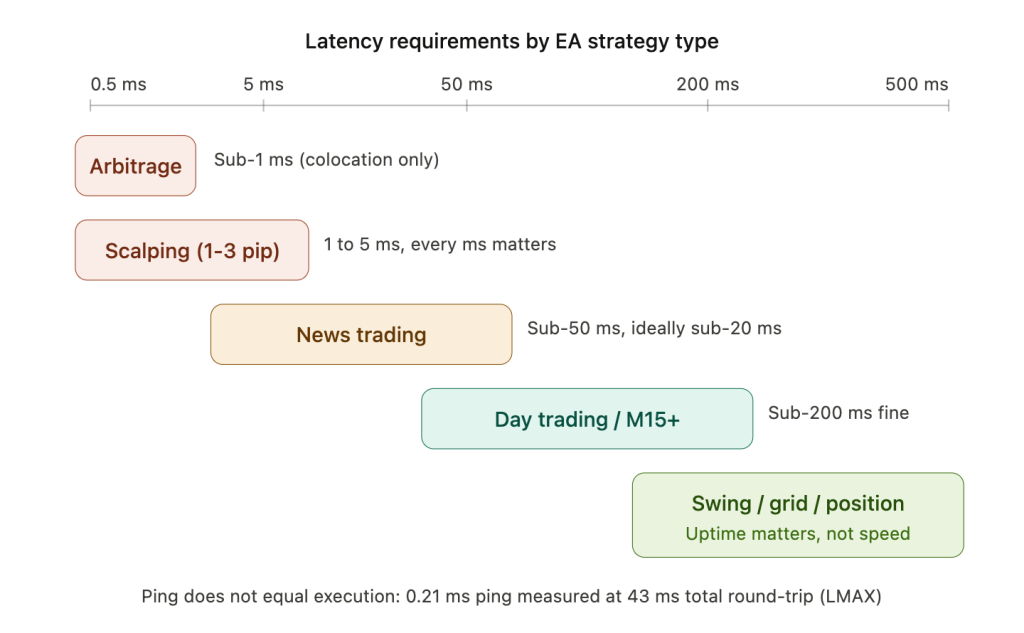
Scalping EAs targeting 1 to 3 pip profits per trade are the most latency-sensitive retail strategies. A ForexVPS.net experiment comparing identical EAs on a London VPS (1ms latency) versus a New York VPS (75ms latency) measured a 1.70 pip cumulative slippage difference over 120 trades. At one standard lot ($10/pip), this translates to $170 per 120 trades, scaling to roughly $12,000 per year at 100 lots monthly. For scalpers, optimal latency is 1 to 5ms and anything above 20ms degrades profitability measurably. This experiment was published by a VPS provider with commercial interest in the result and has not been independently replicated, but the directional finding aligns with execution quality data from brokers and academic research on slippage.
News trading bots need latency below 50ms, ideally under 20ms. During major releases like NFP or rate decisions, EUR/USD can move 3 to 5 pips within one second. At 200ms home latency, the price has moved 0.6 to 1.0 pip before the order even reaches the broker. On a VPS with 5ms latency in the same data center as the broker, the order arrives before most of that price movement has occurred. The difference between capturing the intended entry and entering 1 pip worse compounds across dozens of news trades per month.
Latency arbitrage is the extreme case where speed is the entire edge. Forex latency arbitrage opportunities typically last only 2 to 4 milliseconds, requiring sub-1ms connections achievable only through colocation, which means placing a dedicated physical server in the same building as the broker’s matching engine. This is not a VPS use case. Colocation costs $1,000 to $10,000+ per month including rack space, power, and cross-connects. For most retail traders, it is neither accessible nor necessary.
Swing trading EAs holding positions for hours to days tolerate latency up to 300 to 500ms without meaningful impact. A 2-pip adverse fill on a 50-pip target trade reduces profit by 4%, which is noticeable but not strategy-breaking. The primary VPS value for swing traders is uptime reliability, not speed. Grid bots, position traders, and martingale systems are similarly latency-tolerant. Individual entry precision matters less when the strategy profits from oscillation across an entire grid or targets 100 to 500+ pip moves.
Ping does not equal execution time
An important distinction that VPS marketing often obscures: a 2ms ping to the broker does not mean 2ms trade execution. Ping measures only the network round-trip between your VPS and the broker’s server. Actual trade execution includes broker-side order processing through the gateway, trade server, and bridge infrastructure. One test showed LMAX Exchange with a 0.21ms ping but 43ms average total execution time. The broker-side processing added over 42ms that no amount of VPS optimization can reduce.
Stable latency with low jitter is often more important than the absolute lowest ping number. A VPS that consistently delivers 5ms is more reliable for EA execution than one that alternates between 1ms and 20ms. Spiky latency causes unpredictable fill quality that is harder for an EA to manage than consistently slightly slower fills.
Choosing VPS location based on broker server location
VPS location should match where your broker’s trading server physically sits. The major forex data center hubs are Equinix LD4 and LD5 in London (the highest global concentration of forex broker matching engines, hosting IC Markets cTrader, Pepperstone, LMAX, Tickmill, and Darwinex among others), Equinix NY4 and NY5 near New York (IC Markets MT4/MT5, OANDA, FOREX.com, Interactive Brokers), Equinix TY3 in Tokyo, and Equinix SG1 in Singapore.
To determine your broker’s server location, check File, Open an Account in MetaTrader for the server hostname, resolve the IP address, and use a geolocation tool. “Slough” or “London” in the results indicates LD4/LD5. “Secaucus” or “Weehawken” in New Jersey indicates NY4/NY5. If you are uncertain, London is the safest default due to the highest concentration of forex broker infrastructure globally.
MetaQuotes’ built-in VPS ($10 to $15/month) automatically selects the hosting point with the lowest ping to your broker from 30+ locations worldwide. MetaQuotes claims 96% of broker servers are accessible in under 10ms and 84% in under 3ms. User reports show typical latency of 2 to 8ms. The limitations are significant: no RDP access to a full Windows desktop, DLL files are prohibited (which breaks many custom EAs), a maximum of 3 GB RAM and 16 GB disk, and no ability to run non-MetaTrader applications. For traders running standard EAs without DLL dependencies, it offers excellent value. For anything more complex, a full Windows VPS is necessary.
For most retail EA traders, a VPS in the same Equinix campus as their broker achieves 1 to 5ms latency at $15 to $50/month. This captures over 90% of the execution benefit of full colocation at a fraction of the cost. The remaining difference between 1ms VPS latency and 0.3ms colocation latency is measurable only in strategies that execute thousands of trades per month with sub-3-pip targets.
The Cost-Benefit Math Favors VPS at Nearly Any Account Size
Forex VPS pricing spans a wide range, and understanding the full cost picture prevents both overspending on premium plans and falsely economizing by running on a home PC.
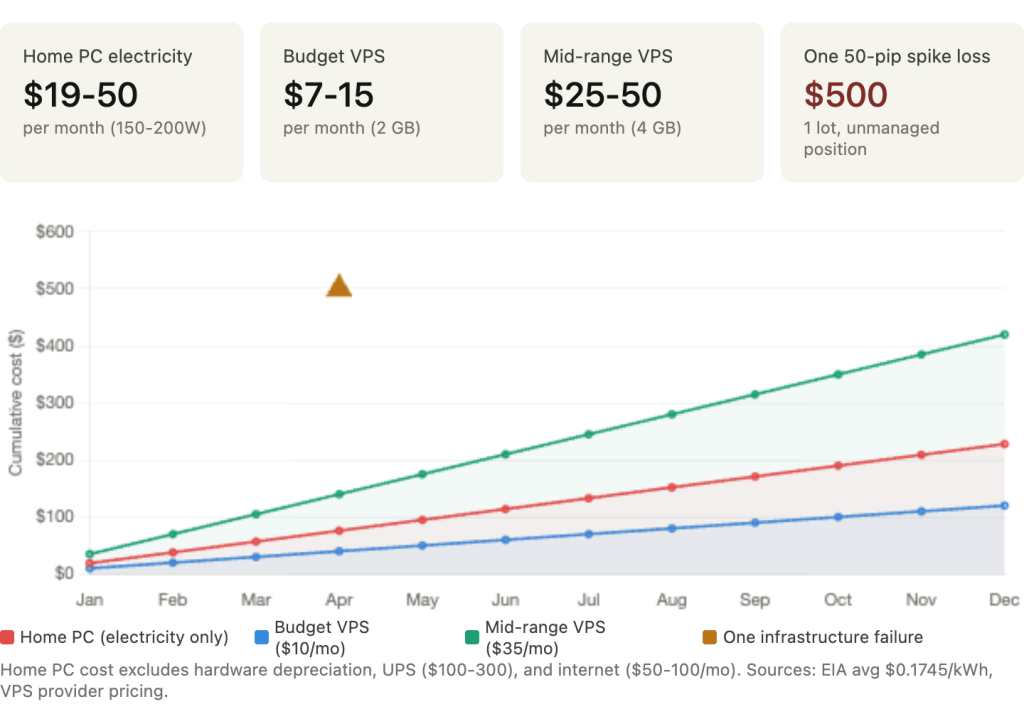
Budget options start at $7 to $15/month. Cloudzy offers 2 GB for $9.95, AccuWebHosting starts at $9.99 for 1.5 GB, and MassiveGRID begins at $1.99 for entry-level shared hosting. Mid-range plans run $25 to $50/month: FXVM at $35 for 2.5 GB, TradingFXVPS at $25 for 2 GB, ForexVPS.net at $35 for 4 GB. Premium plans with dedicated cores and Equinix colocation cost $50 to $80/month: FXVM High Frequency at $69, TradingFXVPS Expert at $70, FXVPS.biz Pro at $79 billed annually.
Running a home PC 24/7 costs more than most traders realize when they compare it against VPS pricing. A typical desktop idling with MetaTrader consumes 100 to 200 watts. At the U.S. national average electricity rate of $0.1745/kWh, a 150-watt system costs roughly $19/month or $229/year. That alone is comparable to a budget VPS. In high-cost states like California at $0.34/kWh, a 200-watt desktop costs approximately $50/month, matching a mid-range VPS plan. This electricity comparison does not account for hardware depreciation, the $100 to $300 cost of a consumer UPS that provides only 10 to 30 minutes of backup, or the $50 to $100/month home internet bill that adds no redundancy and no uptime guarantee.
The cost of a single infrastructure failure dwarfs annual VPS expenses. A 1-lot EUR/USD position moves $10 per pip. During a 50-pip news spike, routine for NFP or FOMC releases, an unmanaged position without an adjusted stop loss could lose $500 in minutes. A 100-pip move against an unmanaged grid position could exceed $1,000. An entire year of mid-range VPS hosting costs $300 to $600. One bad disconnection during one volatile session can cost more than the annual infrastructure investment.
Several brokers offer free VPS services to qualifying traders, though the volume thresholds are significant. IC Markets requires 15 standard lots per month for a basic 2 GB VPS, scaling to 75 lots for a premium plan. Pepperstone requires $1,000,000 in notional volume over a rolling 60-day period. XM requires a $500 minimum balance plus 5 standard lots monthly. These thresholds are out of reach for most retail traders, and broker-provided VPS plans carry additional constraints: they lock you to a single broker and can be revoked if your volume drops below the threshold for one to two consecutive months. For the majority of retail EA traders, an independent VPS provides both better flexibility and more predictable costs.
The break-even calculation is straightforward. If an account generates enough profit to cover $25 to $50/month in VPS costs, the VPS is essential infrastructure. For traders running any EA that manages positions with client-side logic, trailing stops, grid management, dynamic stop adjustments, basket hedging, the question is not whether a VPS is worth the cost. It is whether operating without one is an acceptable risk given the documented failure modes and the magnitude of potential losses from a single unmanaged disconnection.
Nine Common VPS Mistakes That Undermine EA Reliability
Experienced traders on MQL5 and ForexFactory forums report the same configuration errors repeatedly. Each one is avoidable with proper setup, and most cause silent failures that the trader discovers only after a loss.
Not configuring auto-login tops every list. After a VPS reboot, whether from planned maintenance, a Windows Update, or a crash recovery, Windows stops at the login screen. Nothing in the Startup folder executes. MetaTrader sits idle while markets move and open positions go unmanaged. The fix is Sysinternals Autologon, which takes 30 seconds to configure and eliminates this failure mode permanently.
Running without portable mode is the second most common error and produces the most confusing symptom. After a reboot with auto-login enabled, MetaTrader launches but appears as a fresh installation: no saved login, no charts, no attached EAs. The trader connects via RDP hours later and finds a blank terminal. The cause is a data folder path mismatch between the auto-login session and the RDP session. The /portable flag stores all data in the installation directory, making the session context irrelevant.
Using the Balanced power plan instead of High Performance throttles CPU frequency during the brief idle periods between ticks. MetaTrader’s workload is inherently bursty: a tick arrives, the EA processes it in milliseconds, then the terminal waits for the next tick. Balanced mode interprets each idle gap as low demand and reduces clock speed. When the next tick arrives, the CPU must ramp back up before processing. This adds microseconds to every tick cycle for zero benefit on a VPS where you are not paying the electricity bill.
Leaving all Market Watch symbols visible wastes 20 to 40% of available CPU processing ticks for symbols no EA uses. A broker offering 150 symbols generates thousands of unnecessary ticks per second that MetaTrader must process, store, and display. Hiding unused symbols via right-click, Hide All, then adding back only traded pairs eliminates this waste immediately.
Not reducing max bars in chart from the default 512,000 wastes hundreds of megabytes of RAM on history data that no execution bot needs. Most EAs look back fewer than 200 bars. Reducing this to 5,000 to 10,000 provides generous headroom while freeing memory that the VPS needs for headroom during volatile sessions.
Running web browsers or other non-trading software on the VPS consumes RAM and CPU that should be reserved for MetaTrader. Chrome alone can consume 500 MB to 1+ GB with a few open tabs. During high-volatility periods when every tick matters, browser memory pressure can push the VPS into swap and degrade EA execution. Download files on your local machine and transfer them to the VPS via RDP clipboard or file sharing. Do not browse the web on your trading server.
Not scheduling regular MetaTrader restarts allows memory to accumulate over days of continuous operation. MetaTrader accumulates tick history in memory, log buffers grow, cached timeseries persist, and poorly coded EAs may leak memory through unreleased arrays or unclosed file handles. With multiple EAs running, the terminal can grow by roughly 50 MB per day. After a week, that is 350 MB of accumulated bloat on a system where every megabyte of headroom matters during volatile sessions. A scheduled weekly restart during the Saturday market close via Task Scheduler prevents this entirely.
Ignoring log file growth is the sleeper failure. MetaTrader log files grow continuously, and individual files have been reported reaching 6 to 30 GB during debugging or extended backtesting. When the VPS disk fills completely, Windows can crash, corrupt system files, or prevent MetaTrader from writing new data. A weekly or daily scheduled cleanup script that deletes log files older than 7 days prevents this. The current day’s log file is locked by MetaTrader and will be skipped automatically.
Not testing recovery behavior before going live means discovering during a real reboot that MetaTrader loaded without EAs, or that the AutoTrading button was disabled because the “Disable automated trading when the profile has been changed” option was checked, or that the EA lost its state because GlobalVariables were not flushed to disk before the shutdown. The test is simple: with your full EA configuration running on a demo account, force a VPS reboot and observe. Does MetaTrader launch automatically? Do all EAs reattach? Is the AutoTrading button green? Does the EA resume managing positions correctly? Any failure you discover during this test would have been a real loss in production.
FAQ
Do my open positions close if my VPS reboots?
No. Open positions live on the broker’s server, not in MetaTrader. A VPS reboot, a MetaTrader crash, or a complete internet outage does not close your positions. Server-side orders (stop losses, take profits, pending orders) continue executing normally during any disconnection. What stops working is client-side logic: trailing stops freeze at their last position, EA-managed exits cease, grid level calculations halt, and no new trades can be opened until MetaTrader reconnects. This is why the server-side stop loss recommendation is non-negotiable. Your positions survive. Your management of those positions does not.
Can I run my EA on the MetaQuotes built-in VPS instead of a full Windows VPS?
For standard EAs without DLL dependencies, the MetaQuotes VPS ($10 to $15/month) is an excellent entry point. It achieves sub-3ms latency to 96% of broker servers, handles auto-restart natively, and requires zero Windows configuration. The limitations that disqualify it for many traders are: DLL files are prohibited (which breaks custom indicators and EAs that call external libraries), there is no RDP access to a Windows desktop (you cannot install monitoring tools, run scripts, or debug issues), a maximum of 3 GB RAM and 16 GB disk, and one subscription per trading account. If your EA runs purely on MQL without external dependencies and you trade a single account, it is the simplest and most cost-effective option. For multi-account setups, custom DLL indicators, or any workflow requiring Windows-level access, a full VPS is necessary.
How do I know if my broker’s server is in London or New York?
Open MetaTrader and navigate to File, Open an Account. The server list shows hostnames for your broker’s trading servers. Copy the hostname, resolve it to an IP address using a command prompt ping or nslookup, then look up the IP with a geolocation service. If the result shows “Slough,” “London,” or “Berkshire,” the server is in Equinix LD4/LD5. If it shows “Secaucus,” “Weehawken,” or “New Jersey,” the server is in Equinix NY4/NY5. Choose a VPS in the same metropolitan area. If geolocation is ambiguous, London is the safest default because it hosts the highest concentration of forex broker matching engines globally.
Should I use a shared or dedicated VPS for EA trading?
Shared VPS plans allocate CPU cores across multiple tenants on the same physical server. During normal market hours, this works fine because most terminals idle at 10 to 30% CPU. During high-impact news events, every trader’s EA activates simultaneously, and shared CPU resources become contested. If your strategy trades during NFP, FOMC, or other scheduled high-volatility events, dedicated cores eliminate the “noisy neighbor” problem where another tenant’s CPU spike degrades your execution. For swing and position trading EAs that are not time-sensitive to individual tick processing, shared plans provide adequate performance at lower cost.
How often should I connect via RDP to check my VPS?
With proper monitoring in place (heartbeat files, Telegram alerts, external uptime checks), you should not need to connect via RDP during normal operation. The monitoring system tells you when something needs attention. Many traders check manually once per week during the weekend market close when they perform their scheduled restart and log cleanup. The important point is that your monitoring should alert you to problems rather than requiring you to discover them through periodic manual inspection. If you find yourself connecting daily to check whether MetaTrader is running, your monitoring setup is incomplete.
Is a Linux VPS cheaper and better for running EAs?
Linux VPS plans are typically $5 to $10/month cheaper than Windows equivalents because there is no OS licensing cost, and Linux idles at 600 MB to 1 GB of RAM versus 1.8 to 4 GB for Windows Server, freeing substantially more memory for your applications. However, MetaTrader is a Windows application. Running it on Linux requires Wine or a similar compatibility layer, which introduces additional overhead and potential instability. For a 24/5 production trading environment where reliability matters more than cost savings, a Windows VPS is the more reliable deployment path. If you are running non-MetaTrader trading systems (Python-based bots, custom API integrations), Linux is often the better choice, but that is a different infrastructure category than EA trading on MetaTrader.
References
- U.S. Energy Information Administration (EIA). Annual Electric Power Industry Report, 2022 and 2024 data. Power interruption frequency (1.4 to 1.5 per customer per year), average duration (5.6 hours, rising to 9 hours in hurricane years), and regional variance (Louisiana 80+ hours, Washington D.C. 52 minutes).
- Ofcom. UK Home Broadband Performance Report. ADSL2+ disconnection rates (19% of lines experiencing 2+ disconnections per day lasting 30+ seconds). Vorboss UK business connectivity study: 51% of fixed business customers experienced outage within 12 months, micro businesses averaging 15.8 hours of downtime.
- MetaTrader 4 Platform Documentation. Trailing Stop client-side behavior: “Trailing Stop is always attached to an open position and works in client terminal, not at the server like Stop Loss.” OnTick() event model, IsConnected() function limitations, OnTimer() polling for disconnection detection. Network timeout behavior (~30 seconds local, 1+ minute upstream). Confirmed by Alpari, AMP Futures, and EarnForex documentation.
- MQL5.com Forum. Developer WHRoeder: reconnection typically ~1 minute, running 11 MT4 accounts on 800 MHz Pentium III at under 10% CPU for nearly two years. Developer testing 15 brokers with connection issues on 10. Platform reconnection behavior (up to 20 retries, credential mismatch failure mode). No OnDisconnect event in MQL4/MQL5. GlobalVariableSet()/Get() persistence in gvariables.dat, four-week expiry, GlobalVariablesFlush() for crash safety. MT4 build 1010 breaking EAs, build 1340+ EA removal bug. AutoTrading persistence and “Disable when profile changed” setting.
- MQL5.com Blog and Documentation. User-reported disconnection lasting one full day triggering emergency 10-ATR stop loss. MT5 auto-update system documentation (“cannot be disabled”). /skipupdate command-line flag behavior. Seven-part Telegram integration article series. MT5 Monitoring Heartbeat and Metatrader Uptime Monitoring utilities on MQL5 Market.
- ForexFactory Forum. User-documented MT4 disconnection between 3am and 4am causing missed 4:10am trade. MetaTrader failed auto-reconnect requiring manual intervention. Log files reaching 20 GB filling C: drive. Caveat on external monitoring services: “Services like Uptime Robot will only let you know when your Windows server is offline.”
- VPS Provider Documentation and Operational Data. ForexVPS.net: London vs NYC latency experiment (1.70 pip slippage difference over 120 trades), 99.99% uptime SLA, 4 GB plan at $35/month. FXVM: 99.99% uptime, 2.5 GB plan at $35/month, High Frequency at $69/month. TradingFXVPS: 99.99% uptime, 2 GB plan at $25/month. MassiveGRID: 100% uptime claim (Proxmox HA + Ceph 3x replication), entry from $1.99/month. AccuWebHosting: 99.9% SLA, 1.5 GB plan at $9.99/month. QuantVPS: 99.999% uptime claim. FXVPS.biz: Market Watch cleanup 20-40% CPU reduction, 99.99% uptime.
- DatabaseMart. Published production benchmark: 7 to 9 MT5 EA instances on 2 vCPU / 4 GB RAM VPS, averaging 7 to 15% CPU with peaks at 50 to 60%, memory at 45 to 60%, running 147+ consecutive days without crashes.
- MetaQuotes Built-in VPS Service. Pricing ($10 to $15/month), latency claims (96% of broker servers under 10ms, 84% under 3ms), user-reported 2 to 8ms typical latency. Limitations: no DLL support, no strategy testing, no RDP access, 3 GB RAM maximum, 16 GB disk, one subscription per trading account.
- Microsoft Sysinternals. Autologon utility documentation. LSA-encrypted credential storage for automatic Windows login after reboot.
- Broker Free VPS Programs. IC Markets: 15 standard lots/month for basic 2 GB VPS, 75 lots for premium. Pepperstone: $1,000,000 notional volume over rolling 60 days. XM: $500 minimum balance plus 5 standard lots monthly. Volume requirements and revocation policies as documented on respective broker websites.
- LMAX Exchange. Execution quality data: 0.21ms ping with 43ms average total execution time, demonstrating that ping does not equal execution speed. Broker-side processing (gateway, trade server, bridge) accounts for the majority of total round-trip time.
Editorial Note
This article covers VPS infrastructure for running forex Expert Advisors: failure mode analysis, resource sizing, deployment configuration, monitoring, optimization, latency selection, and cost-benefit evaluation. It does not constitute financial advice, trading strategy recommendations, or endorsement of any specific EA, broker, or VPS provider.
The trailing stop client-side behavior described in this article is documented by MetaQuotes and confirmed by multiple independent sources. Traders should verify this behavior with their specific broker and platform version. All stop loss and risk management decisions are the sole responsibility of the trader.
Resource consumption figures are based on documented measurements from MQL5.com, VPS provider operational data, and community benchmarks. Actual consumption varies by broker data feed, EA complexity, chart configuration, and platform version. The DatabaseMart benchmark is the only independently published long-running production test identified during research; other figures represent aggregated provider estimates and should be treated as reference ranges.
VPS uptime guarantees (99.9%, 99.99%, 99.999%, 100%) are contractual SLA commitments. Actual uptime may differ. Traders should review specific provider SLA terms, including compensation policies for downtime exceeding the guarantee, before making infrastructure commitments.
The ForexVPS.net latency experiment was published by a VPS provider with commercial interest in the result and has not been independently replicated. The directional finding (closer VPS = less slippage) is consistent with broker execution data and academic research, but the specific 1.70 pip figure should be treated as indicative rather than definitive.