Day
Hrs
Mins
Secs

⚡ Flash Sale. Grab an extra 15% off annual Forex VPS plans. 40% total savings. Code: FLASHTRADE

1. How to Connect to Your Server from Windows?

As soon as the order is placed and the payment is completed, server deployment begins. Once completed, you will receive an activation email which contains all details that are needed to access your server.

We recommend two ways to access your VPS:

  • Option 1: Ready-made RDP file. Takes about a minute and is the quickest start, especially if this is your first time.
  • Option 2: Manual setup with Remote Desktop Connection. Takes about two minutes and suits anyone who likes full control over their settings.

Option 1: Connect with a ready-made RDP file (fastest)

We’ve already packed your connection details into a file. Download it, open it, type your password, and you’re in.

STEP 1:

First, go to the Client Area and sign in with your account email and password. Then, click your active VPS service to open its overview page.

On the overview page, click Windows. A small .rdp file will download to your computer.

Using Mac or Linux machine? Click macOS or Linux instead to get the file built for your system.

STEP 3:

Double-click the downloaded file (you’ll usually find it in your Downloads folder).

Windows may show a warning, such as “The publisher of this remote connection can’t be identified”. This is normal. Click Connect to continue.

STEP 4:

When asked, paste the password from your activation email and click OK.

If you see a certificate warning next, tick Don’t ask me again for connections to this computer and click Yes.

That’s it, you’re connected! Keep the file somewhere handy, like your desktop, and double-click it any time you want to get back to your server.

Option 2: Connect manually with Remote Desktop Connection

Prefer to set it up yourself? Windows’ built-in Remote Desktop Connection app does the job in four steps.

STEP 1:

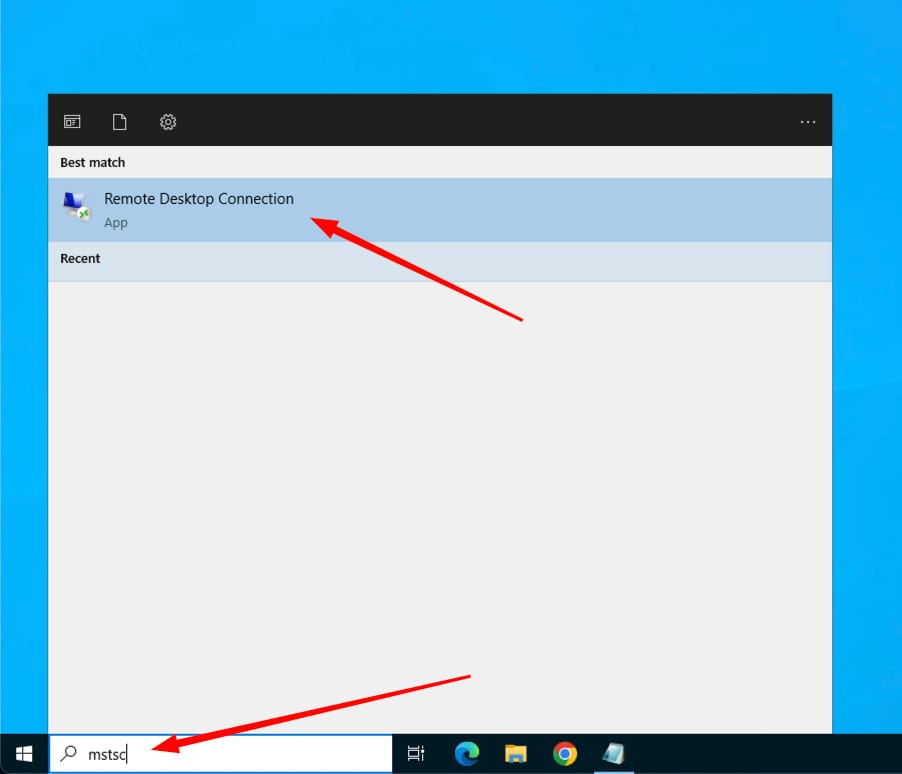
Press Win + S (or click the search bar), type mstsc and open Remote Desktop Connection.
STEP 2:

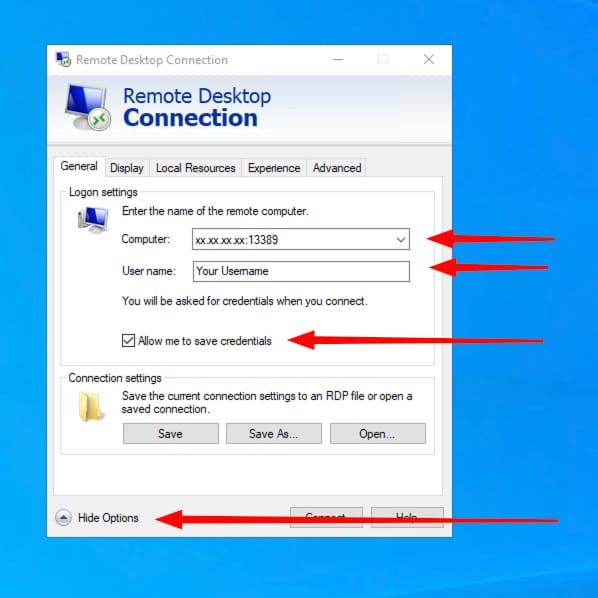
Click Show Options at the bottom to expand application window. Enter the following data:

  • Computer: the hostname from your activation email;
  • User Name: the username from your activation email;

Tick Allow me to save credentials so you won’t have to type them again. Then click Connect.

STEP 3:

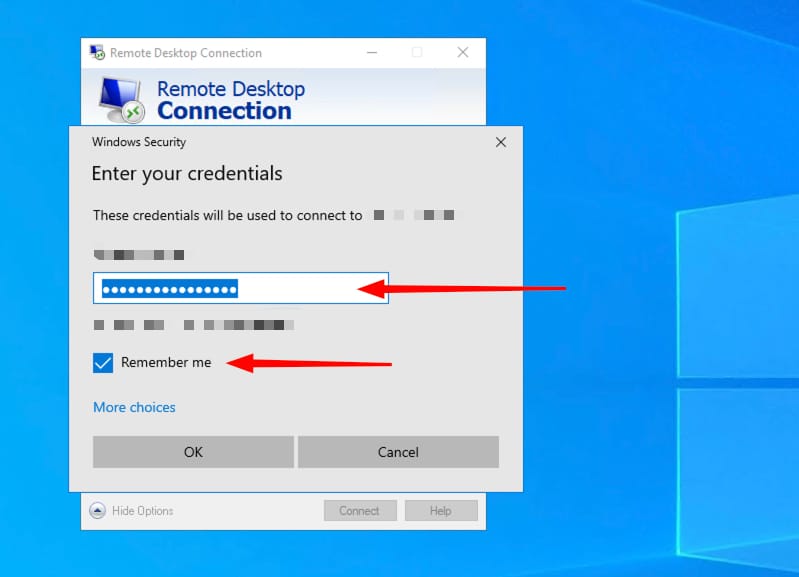
Enter password from your activation email when prompted. Check the box at Remember me to save your password for later use and click OK.
STEP 4:

If a certificate warning appears, tick Don’t ask me again for connections to this computer and click Yes. This is expected for a new server.

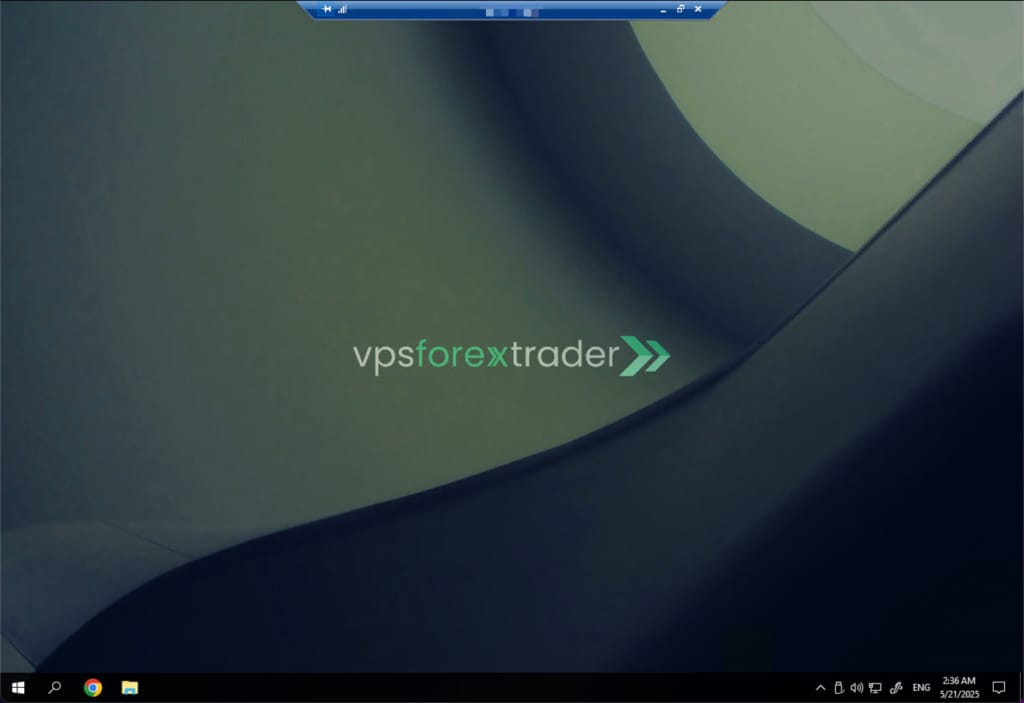
You’re in. Your server’s desktop opens in a new window, ready for your trading platform.

Make it one click next time – create a shortcut to your remote desktop

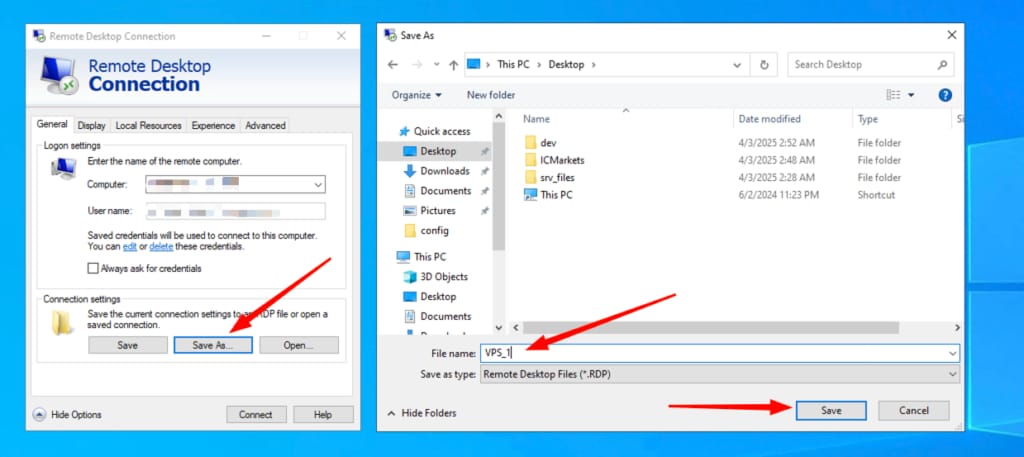
You can easily save your filled in details to .rdp file for easier access in the future:

  • In the expanded Remote Desktop Connection window, click Save As…
  • Give it a name you’ll recognise, like My Forex VPS.
  • Save it to your desktop.

Next time, just double-click the shortcut and you’ll land straight on your server.

Something not working?

Most connection hiccups have a quick fix:

  • Your credentials did not work
    Re-copy the username and password from your activation email, making sure no spaces sneak in before or after.
  • Remote Desktop can’t connect to the remote computer
    Check the hostname is exactly as in your activation email. If it is, your server may still be starting up, so wait a few minutes and try again.
  • A warning about an unknown publisher when opening the RDP file
    This is expected. Click Connect to continue.
  • A certificate warning
    This is expected for a new server. Tick Don’t ask me again and click Yes.
  • Can’t find the activation email?
    Make sure to check your spam and junk folder. If you still cannot find the email, contact our customer support for further assistance.

What’s next?

Now that you’re connected, it’s time to install your trading platform. Check out this guide to learn more – How to Install MT4 or MT5 Platform on Windows Server 2022?

Stuck at any step? Our support team is around 24/7 and happy to walk you through it. Contact at [email protected]

About The Author
Stay on top of everything

Subscribe to our newsletter