
As soon as you pay your order invoice, deployment of server starts. When it is done, you will get an email with login credentials.
Easy step-by-step instructions to connect from iOS devices:
STEP 1:
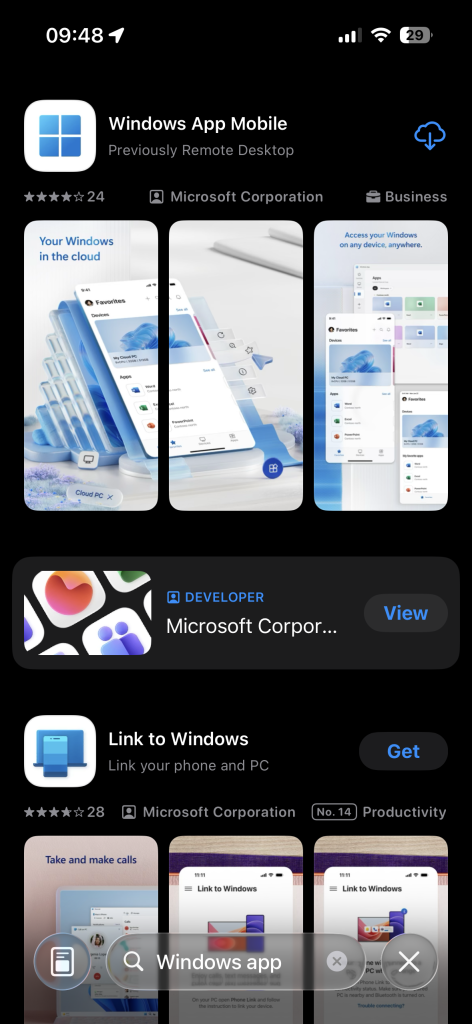
In App store search for “Windows App Mobile” application and download it.
STEP 2:
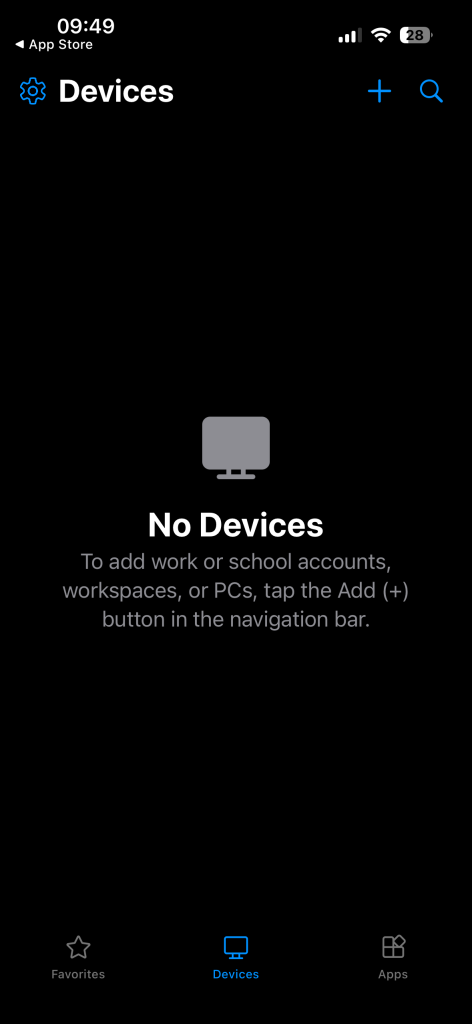
When download completes, start an application and press “+” sign in top right corner to add you server to the connections list.
STEP 3:
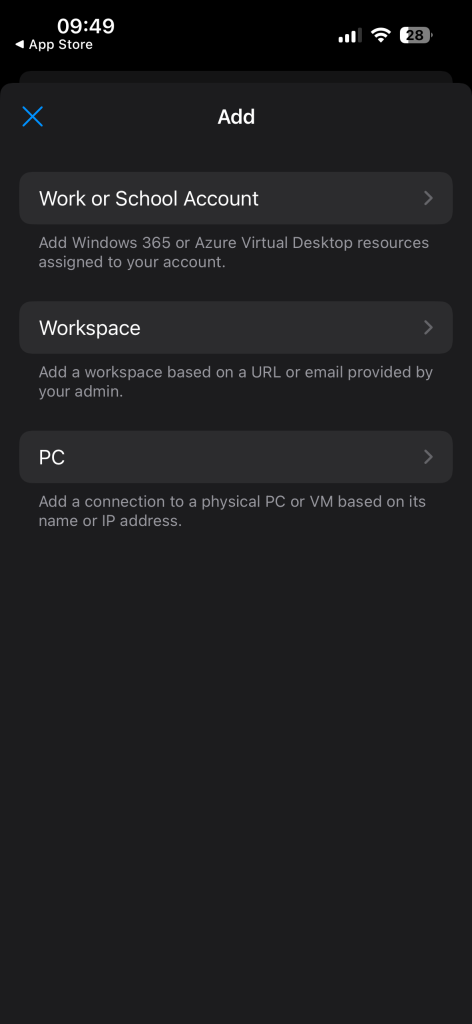
Select the “PC” option.
STEP 4:
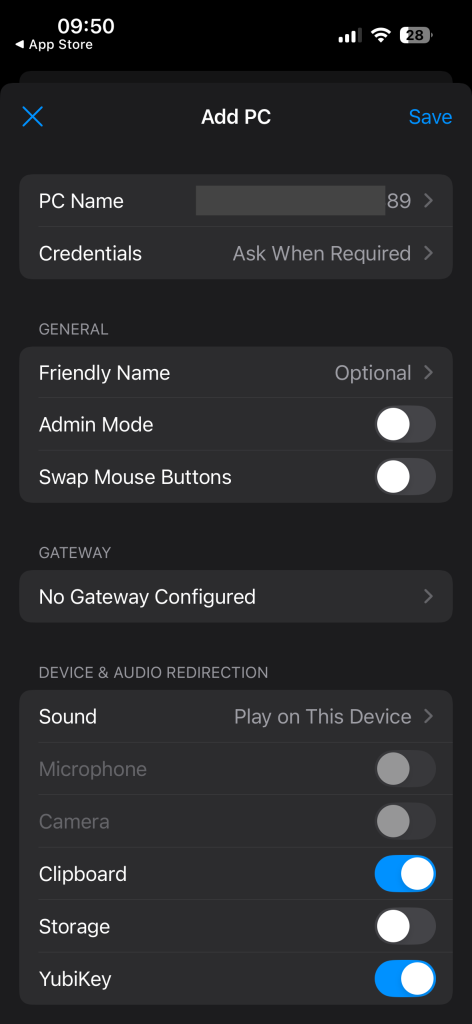
Tap on “PC Name“. Paste the IP address of your new server from service activation email in the following format: x.x.x.x:13389 where x is servers IP address, do not forget to specify port after IP.
STEP 5:
After entering your server’s IP address, tap on “Credentials” and select “Add Credentials”.
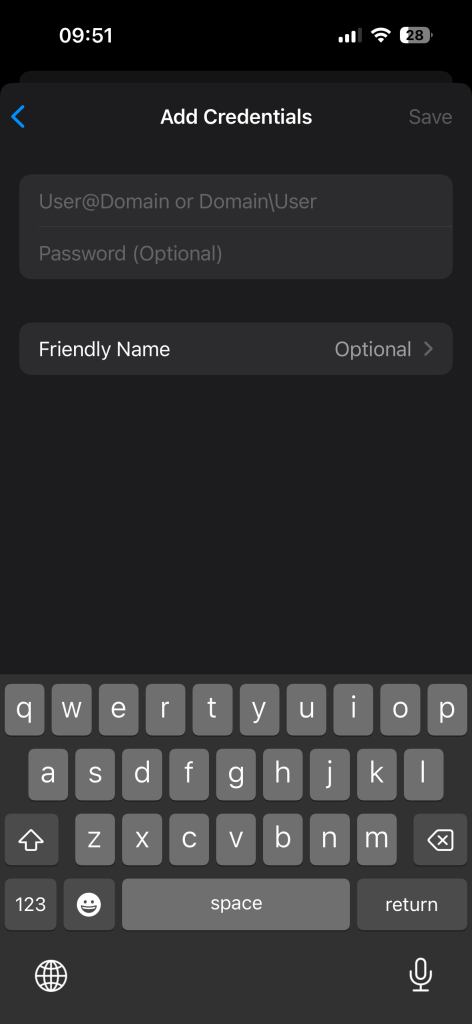
Enter your username and password details from the the activation email.
Please note: This is the part where spaces in the username or password field can be accidentally pasted. Make sure that you carefully select and copy your credentials from the activation email and no spaces are being copied.
STEP 6:
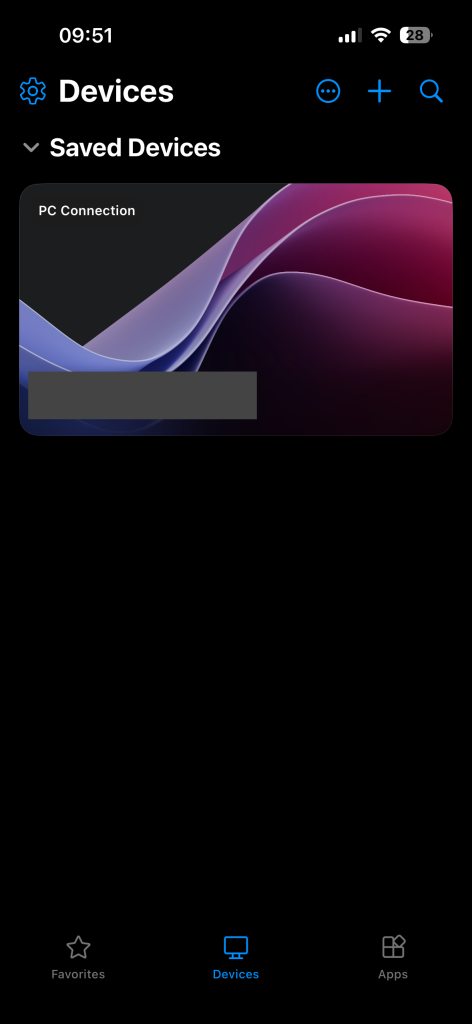
After filling in the details, save your remote PC and it will appear on the list. Click on the remote PC to initiate remote session.
STEP 7:
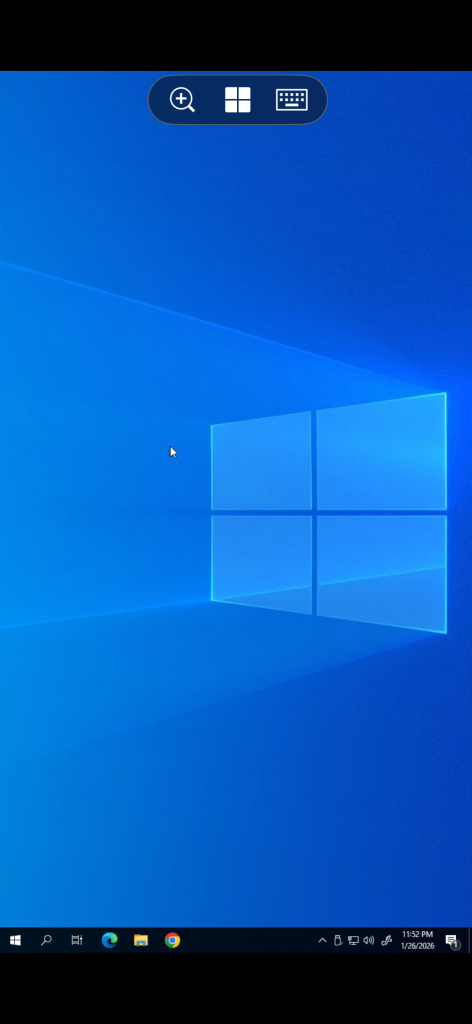
If everything is done correctly, you will successfully connect to your server and see the desktop of the Windows system.
How to disconnect from the server?
Tap on the Windows icon at the top (the one in the middle) and click X.